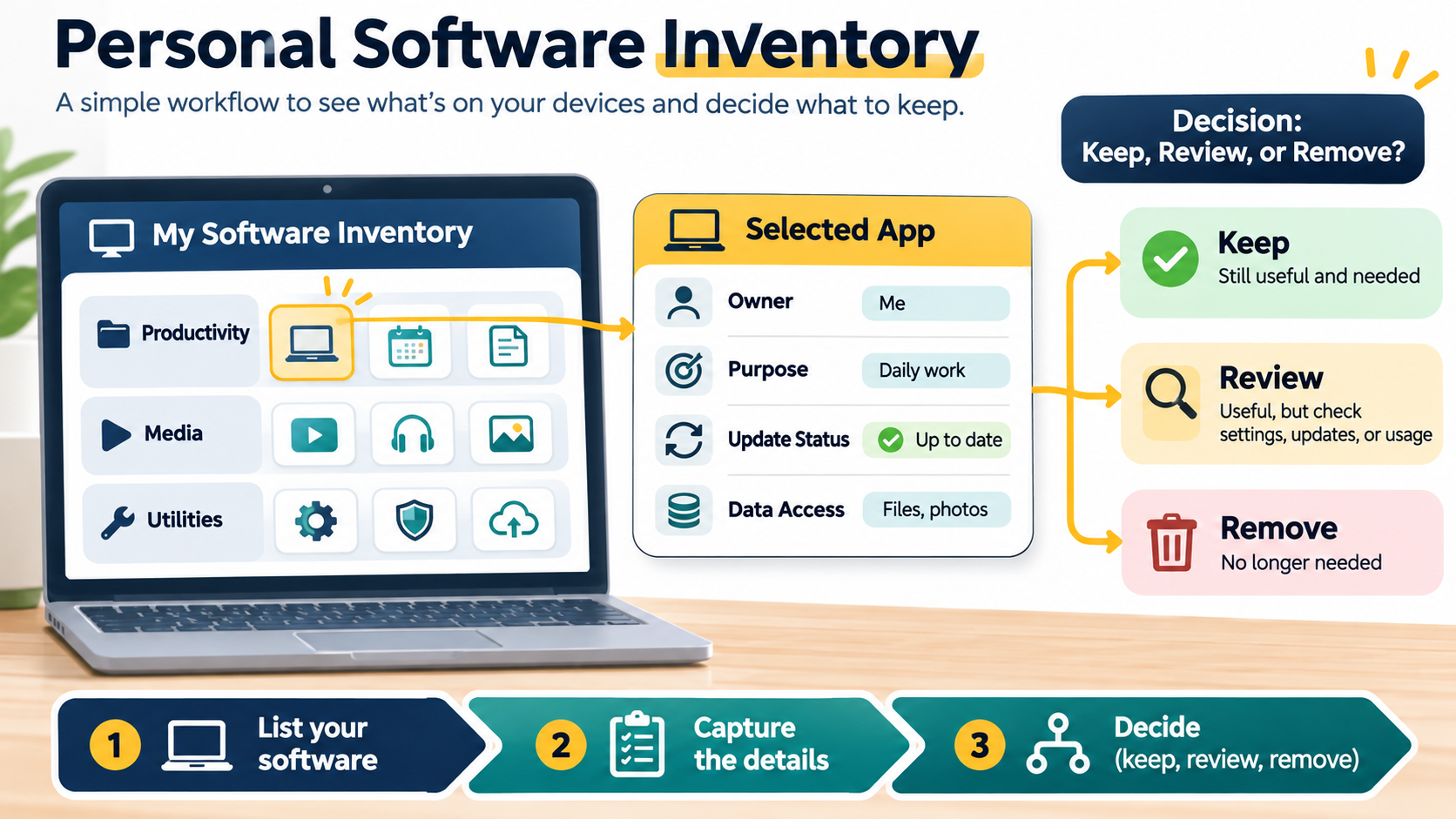
Editorial illustration.
Most people have a software problem before they have a software inventory. An old browser extension still has access to a mailbox. A trial application renews because nobody remembers who installed it. A work laptop contains three tools that do the same job, while the one tool that matters depends on an account nobody can identify.
An inventory does not need to become a perfect catalogue of every file. Its job is to make important decisions visible: what is installed, who owns it, what it is for, what data it can reach, and what should happen next.
Quick Answer
Start with a small table containing the application name, device, owner, purpose, account, update method, data access, and next review date. Begin with the software that can access valuable data or create a recurring cost. Review the list after a device change, a team change, or a security incident. Delete entries only after the application and its stored data have been checked.
What belongs in an inventory?
Include installed desktop and mobile applications, browser extensions, command-line tools, hosted services, plugins, and automation accounts that matter to your work or personal digital life. You do not need to record every operating-system component on day one.
The useful unit is not just “the app”. It is the relationship around the app. A note such as “password manager — personal laptop” is more useful when it also says which account owns the subscription, where recovery codes are kept, and whether another person needs access if you become unavailable.
Build the first version in six steps
1. Choose one place for the record
Use a private spreadsheet, a team document with access control, or an asset-management system you already maintain. Avoid creating a new system that nobody knows how to open. If the inventory contains licence keys, recovery details, or sensitive hostnames, do not leave it in a public repository or an unprotected shared folder.
2. Start with high-value devices and accounts
List the laptop used for work, the phone that receives account prompts, the server or hosting account that runs a site, and the services that hold customer or financial data. This first pass gives you more risk reduction than spending an hour cataloguing a rarely used media player.
3. Record the minimum useful fields
Use columns such as:
- Software or service name and version, where the version is easy to verify.
- Device, environment, or account where it is used.
- Owner and backup contact.
- Purpose in one plain sentence.
- Data it can read, change, export, or share.
- Installation and update method.
- Subscription, renewal, or licence information.
- Last checked date and next action.
Do not invent certainty. If you do not know whether an extension can read all website data, mark it for review and check its permission screen before making a security decision.
4. Write the purpose, not a slogan
“Communication” is too vague. “Receives customer support messages and exports monthly tickets” explains why the software exists and what would break if it disappeared. A clear purpose also reveals duplicates. Two note-taking apps may have different owners but the same real job.
5. Add a decision status
Use simple statuses: Keep, Review, Replace, Remove, or Unknown. “Unknown” is valuable because it prevents a guessed answer from becoming an invisible risk. For a tool marked Remove, first check saved files, integrations, shared links, and the cancellation date.
6. Test one recovery path
Choose one important application and ask whether another authorised person could restore access. Can they find the owner? Is the sign-in method documented? Are exported files readable? This turns an inventory from a list into an operational aid.
A practical example
Imagine a small business with a design application, cloud storage, a password manager, a browser extension for analytics, and an accounting service. The first pass may reveal that the design subscription is billed to a former contractor, the analytics extension is installed on a personal browser, and the accounting service has no backup administrator.
None of those findings means the tools are automatically unsafe. They show where ownership and recovery need attention. The next actions might be to transfer billing, remove the extension from an unmanaged profile, and add a second authorised administrator with a documented recovery route.
Why it matters
An inventory reduces three kinds of guesswork. During an incident, it helps you identify which applications can reach the affected data. During a device replacement, it helps you restore the tools that support real work. During a budget review, it helps you decide whether a subscription is still attached to a meaningful outcome.
It also improves conversations. Instead of asking “Do we still use this?”, you can ask “Which workflow depends on this, who owns it, and what would replace it?” That is a much easier question to answer responsibly.
Keep it current with real events
Do not schedule a large annual inventory if your environment changes every week. Use ordinary events as review triggers. When a device is replaced, confirm the software that moved and the software that did not. When somebody leaves a project, transfer ownership and remove access that was tied only to that person. When a subscription renews, check whether its purpose and owner are still clear.
These small reviews are easier because the relevant context is fresh. Add a note such as “checked after laptop replacement” or “reviewed after account transfer.” The note does not need to become a formal audit report; it simply tells the next person why the row was trusted.
Mistakes to avoid
Do not try to document everything before the first review. A huge list becomes stale before it becomes useful. Do not store passwords in the inventory; link to the approved password manager or recovery process instead. Do not treat an installed application as proof that it is still needed. Do not remove software merely because its name is unfamiliar; confirm its purpose and dependencies first.
Most importantly, do not make one person the only source of truth. The owner can maintain the entry, but the record should explain enough for an authorised colleague to understand the next safe step.
My Take
The best software inventory is deliberately boring. It is short enough to review, specific enough to guide a decision, and honest about what is unknown. Start with the devices and services that can cause the most trouble, then improve the record whenever a real change gives you a reason to open it.
Bottom Line
Create the first inventory with eight useful fields, review the highest-risk entries, and assign a next action to every unknown. A maintained list can prevent forgotten subscriptions, unclear ownership, and rushed access decisions without becoming another project that needs its own project manager.