Drupal Twig Override Not Appearing? Find the Active Template First
You add node--article.html.twig, clear Drupal’s cache, and the page still looks unchanged. The filename may not match the template hook or suggestion Drupal actually used. Twig debug comments can show the active template and candidate names, but you should enable them only in a development environment.
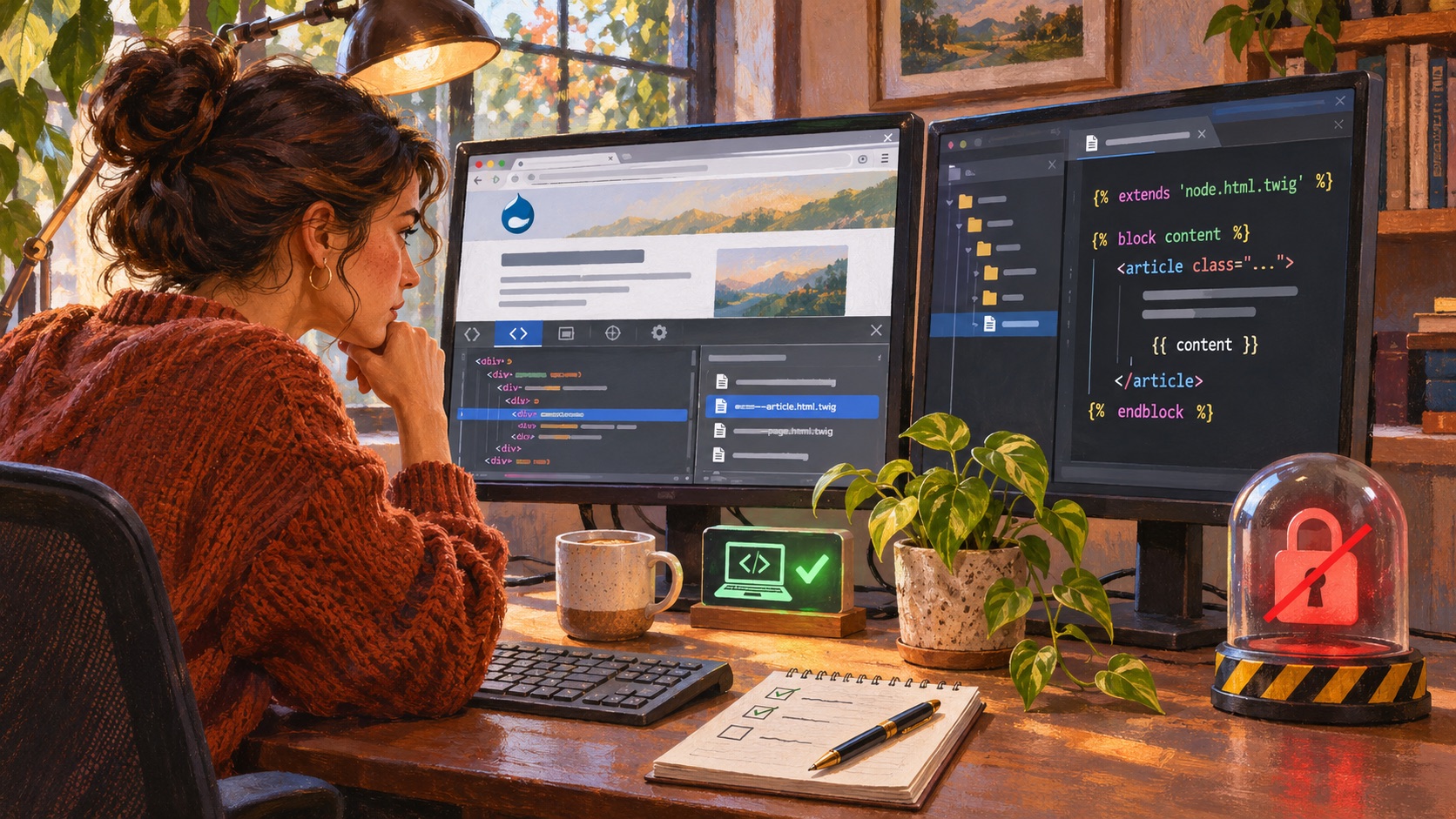
Editorial illustration: inspect the active template and candidate suggestions in a local development environment.
Summary
- Enable Twig debugging locally, inspect the rendered page source and find the
THEME HOOKand template suggestions around the markup. - Copy a valid suggested filename into the active theme’s
templatesdirectory, then rebuild caches and confirm the file appears in the debug comments. - Turn debugging off before production; debug comments and disabled caches affect performance and may expose implementation details.
Why guessing the filename wastes time
Drupal’s theme layer selects templates through theme hooks and suggestion lists. A node page may use a node template, but the exact suggestion can depend on the content type, view mode, bundle and other context. A filename that looks reasonable may be misspelled, use the wrong prefix, or target a different view mode than the markup you are inspecting.
Twig debug mode adds HTML comments around rendered output. Those comments identify the theme hook, list suggestions and indicate which template was used. That turns a guess into a concrete check. Drupal’s official Twig debugging guide documents enabling debug mode and warns against using it on production.
Enable Twig debug in development
For Drupal 10.1 and later, the Development settings page at /admin/config/development/settings includes Twig development options, when the development settings are available. You can also configure twig.config in a development services file referenced only by local settings. A common development.services.yml value is:
parameters:
  twig.config:
    debug: true
    auto_reload: true
Do not place development-only settings in a shared production configuration by habit. For multisite installations, confirm the correct site-specific settings file is being loaded. After changing settings, rebuild Drupal’s cache if the change has not taken effect. If you use Drush, check the actual container parameter on the intended local site:
drush php:eval "var_export(\Drupal::getContainer()->getParameter('twig.config'));"
This command reports the running container’s value; it does not enable debugging by itself. Confirm debug is true, and confirm that the command points to your development site before inspecting output.
Locate the right template step by step
- Open the page that contains the exact markup. A node page, a View row and a block can use different theme hooks even when they show the same content.
- View the page source around that element. Search for
THEME DEBUGorTHEME HOOK. The comments may be easier to find in page source than in the browser’s visual Elements panel. - Read the candidate suggestions in order. Drupal’s debug comments show the possible template filenames and mark the one currently used. Use a candidate that matches the element and context you intend to change.
- Place the override in the active theme. Check the active theme’s
templatesdirectory and preserve the exact filename, hyphens and lowercase spelling shown by the suggestion. - Rebuild cache after adding or renaming the file. Then reload the same page and confirm the debug comment names your override as the active template.
- Make a small visible change and test the relevant context. Check the target bundle and view mode, plus another page that should remain unaffected. Remove temporary
dump()output when finished.
If the active template is correct but your markup change appears stale, inspect the two cache layers separately. Twig’s compiled template cache concerns recompiling a changed template. Drupal’s Render API cache can serve already-rendered markup without invoking Twig at all. Drupal’s compiled template debugging guide describes that distinction. Rebuilding caches after a template change is a useful diagnostic, but repeatedly clearing all caches is not a replacement for identifying the right template or cache layer.
How to avoid an overly broad override
A general template such as node.html.twig can affect many nodes. Prefer the narrowest valid suggestion that matches the intended page, such as the content type or view mode, when Drupal lists it. This limits the blast radius and makes later theme updates easier to reason about.
Before adding custom markup, check whether Manage Display or the View’s row configuration can solve the problem. A Twig override is appropriate when the rendered structure needs theme-level control; it is unnecessary for a label or field order that an existing display setting already handles. If you are building a custom component, keep its template and required libraries associated with the render element rather than globally attaching assets. Our guide to tracing a Drupal CSS or JavaScript library covers that separate path.
Common failure points
- Debug enabled in the wrong environment: the browser may be hitting staging or production while you changed local settings. Verify the hostname and active release.
- Template suggestion copied with the wrong case or prefix: use the exact suggested filename and confirm it belongs to the hook you want to override.
- Only Twig cache considered: rendered output may be served by Drupal’s render cache before Twig runs.
- Too broad a template chosen: a base template can change unrelated pages; use a narrower valid suggestion when available.
- Debug markup left enabled: it can affect page output, tests and performance. Remove
dump()calls and disable debug before release.
Drupal’s Development settings can also disable render caches and CSS/JavaScript aggregation. That can make local work more immediate, but those settings should not be left enabled on production. For Drush 13.6 and later, Drupal.org documents a theme:dev command that toggles a development configuration; check the installed Drush version and project setup before using it. Do not assume the command exists on older Drush releases.
My Take
When a Twig override fails, I look for the active hook and suggestion before changing the filename again. The comments tell you what Drupal rendered, and a narrow override is easier to maintain than a catch-all template. The safety trade-off is straightforward: debug visibility belongs in a controlled development environment.
Bottom Line
Enable Twig debug locally, inspect the page-source comments, use the exact valid suggestion, and rebuild caches to confirm the override took effect. Check the active theme and page context before changing markup, then turn debug off and test with normal caches before production.
Sources
- Drupal.org: Debugging Twig templates
- Drupal.org: Debugging compiled Twig templates
- Drupal.org: Disabling and debugging caching
- Drupal.org: Drupal 10.1 Twig development settings change record


