How to Test a USB Drive’s Real Capacity Before Trusting It with Files
A USB drive can report the advertised capacity to Windows or macOS even when its flash memory is much smaller. A full-capacity write-and-read test catches that kind of mismatch before the drive holds your only copy of a project, photos or travel documents.
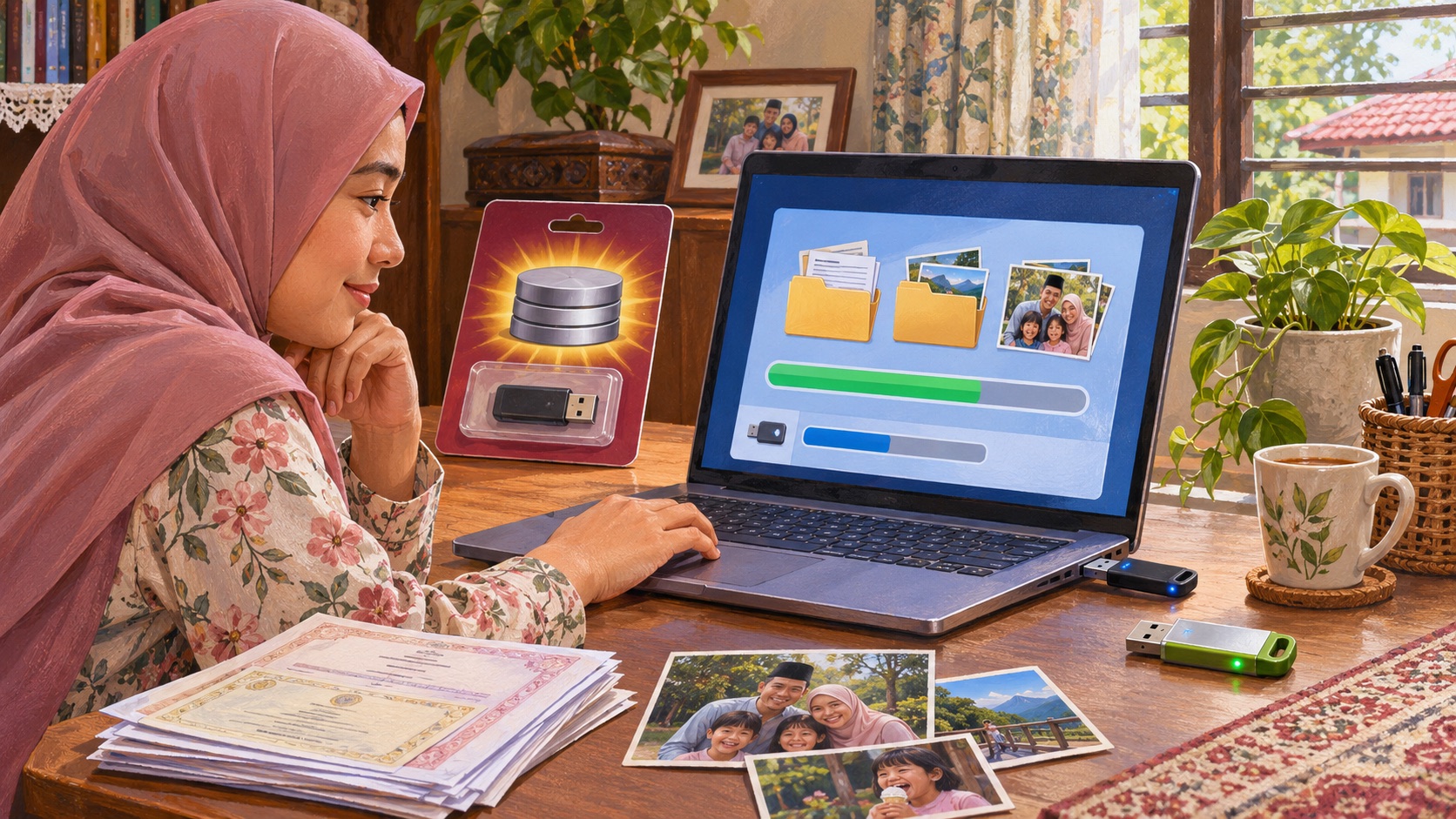
Editorial illustration: verify the storage before it becomes the only copy of important files.
Summary
- A drive’s displayed capacity is not proof that every addressable block can store data correctly.
- Use a full write-and-verify test on an empty drive; it overwrites or fills available space and can take hours.
- A pass checks capacity and read-back consistency at that time, but does not prove long-term reliability or replace backups.
Why a fake drive can look normal
Flash storage reports its capacity through its controller. On a counterfeit or modified drive, the controller may claim a larger size than the memory actually has. The operating system can then show the advertised number and accept files until writes reach the real limit. Older data may be overwritten, or later files may appear in the folder but fail when opened.
A quick format, copying one small file, or checking Properties only tests what the device reports. It does not write and retrieve data across the full capacity. Even a reputable brand can have a faulty unit, so testing is especially useful for a new drive bought from an unfamiliar marketplace listing or at a price that seems implausible.
Before you run a capacity test
- Copy anything valuable elsewhere. A full test fills free space with test data. Do not run a write test on a drive that contains files you need.
- Identify the correct device. Unplug other removable storage if possible. A destructive low-level tool can erase the wrong disk if you select it by mistake.
- Use a direct, reliable connection. Connect the drive to the computer rather than through a flaky hub. Keep a laptop plugged in so it does not sleep midway.
- Make room for the test. A full-capacity test needs time to write and read roughly the usable space. A slow USB 2.0 stick can take much longer than a modern drive.
A normal file-based test is preferable for most people because it writes test files to the mounted drive and checks them afterward. On Windows, H2testw is a commonly used option; get it from the publisher’s listed distribution page rather than an arbitrary download mirror. On macOS or Linux, F3 (Fight Flash Fraud) provides f3write and f3read for this write/read workflow. Follow the tool’s current instructions for your operating system.
Run a full write-and-read test
- Format the drive if you want a clean start. Formatting is optional for a file-based test, but it removes existing files. It does not repair counterfeit memory. Choose a file system your devices support; exFAT is often used for cross-platform removable storage, but check the devices that must read it.
- Select the entire available space. In H2testw, choose the target drive and test all available space. In F3, write test files to the mounted volume with
f3write /path/to/USB, then verify withf3read /path/to/USB. Confirm the path carefully before starting. - Let both phases finish. The write phase fills space with generated files; the read phase checks that the data can be retrieved. Avoid unplugging the device or letting the computer sleep.
- Read the report. A successful report should show all tested space written and verified without lost or corrupted data. A failure can indicate fake capacity, bad flash, a damaged connector, a filesystem problem or an unstable connection. Repeat only after checking the connection and testing on another computer if practical.
- Remove the test files and reformat if needed. After a successful test, delete the generated files and verify the drive is ready for normal use. If the test reports errors, do not trust it with important data; document the result and request a refund or replacement.
What a pass does—and does not—tell you
A full pass is useful evidence that the drive stored and returned test data across the tested space. It does not certify the manufacturer, the advertised speed, future durability, or behavior after years in a drawer. A counterfeit device could behave differently under other conditions, and a genuine drive can still fail later.
There is also a practical distinction between a capacity check and a performance benchmark. A benchmark that writes only a small sample can report speed without reaching a fake drive’s capacity boundary. Conversely, a full capacity test can take a long time and is not something you need to repeat before every use. Test once when the drive is new or suspect, then maintain at least one separate backup for irreplaceable files. Our small-project backup workflow explains how to keep a second copy that is actually useful.
Mistakes that create false confidence
- Checking the box or the operating system’s capacity figure: both rely on what the device reports.
- Testing only a small percentage: the bad region may be beyond the tested portion.
- Using the drive for real files during the test: this can interfere with the generated data or make the results hard to interpret.
- Treating a failure as proof of fraud: a damaged port, cable, filesystem or flash cell can also cause errors. Retest once under a stable connection, then stop relying on the drive if it still fails.
- Assuming a pass means “backup complete”: a USB stick is one copy, and flash memory can fail. Keep another copy on a different device or service.
If the device fails, save screenshots or the test log, record the seller and order details, and ask for a refund or replacement while the return window is open. Do not try to “fix” it by repartitioning to a smaller size unless you understand the tool and have no need to return it; that can hide the original problem without making the hardware reliable.
My Take
A full test is a small inconvenience compared with discovering that a backup was never really written. I would test any unusually cheap or unfamiliar drive before using it, but I would still treat even a passing drive as temporary storage rather than the only safe home for important files.
Conclusion
Test all available space on an empty drive, verify the written data, and keep the report. If capacity or read-back errors appear twice under a stable connection, stop using the drive for anything you cannot replace. Then make a separate backup before moving real files onto any removable storage.


