Editorial illustration.
Originally published 16 June 2023; rewritten and reviewed on 15 October 2026.
Offloading Kentico media libraries to Amazon S3 looks simple until permissions, caching, and public URLs collide. When you move files out of the local App_Data or media folder onto object storage, you are actually setting up three separate access boundaries: Kentico needs permission to write and manage objects, CloudFront needs permission to fetch them from S3, and visitors need a clean, cacheable delivery URL. Treating all three as one big “make the bucket public” toggle usually creates security headaches later.
The original 2023 version of this post walked through AWS Console screenshots from an older setup using IAM users and legacy bucket settings. Those screenshots remain at the bottom for historical context, while the sections below reflect how I would structure the integration cleanly today.
Establish the storage and URL contract first
Before touching IAM or uploading gigabytes of assets, confirm which Kentico or Xperience version you are running and how its storage provider maps paths. In classic Kentico 12/13 setups, the CMS.AmazonS3 provider is wired through web.config or appsettings.json keys such as:
<add key="CMSStorageProviderAssembly" value="CMS.AmazonS3" />
<add key="CMSAmazonBucketName" value="your-kentico-media-bucket" />
<add key="CMSAmazonAccessKeyID" value="YOUR_IAM_ACCESS_KEY" />
<add key="CMSAmazonSecretAccessKey" value="YOUR_IAM_SECRET_KEY" />
<add key="CMSAmazonEndPoint" value="https://s3.ap-southeast-1.amazonaws.com" />
<add key="CMSAmazonPublicAccess" value="false" />
Decide your region (for Malaysian or Southeast Asian traffic, ap-southeast-1 Singapore is typically the sensible default), your object key prefix if multiple environments share a bucket, and your delivery hostname such as media.example.com. Recording which URLs must remain stable prevents broken <img> tags in old rich-text content once the switch happens.
Keep the S3 origin private and scope the CMS identity
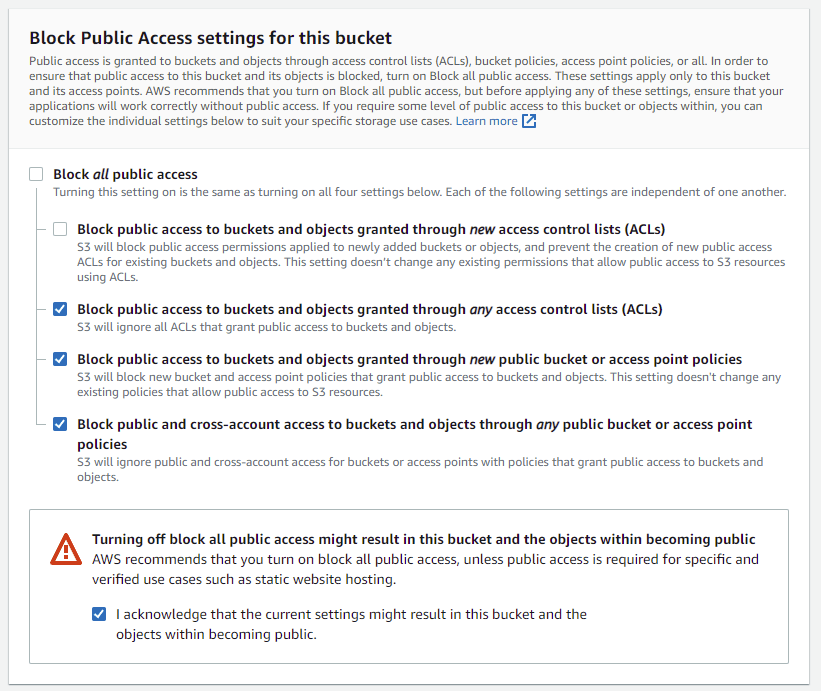
Leave Block all public access enabled on the S3 bucket. Visitors never need direct s3.amazonaws.com URLs when CloudFront sits in front. Instead, configure CloudFront Origin Access Control (OAC) so CloudFront signs requests to S3 on its own, and attach a bucket policy allowing s3:GetObject only from your specific CloudFront distribution ARN.
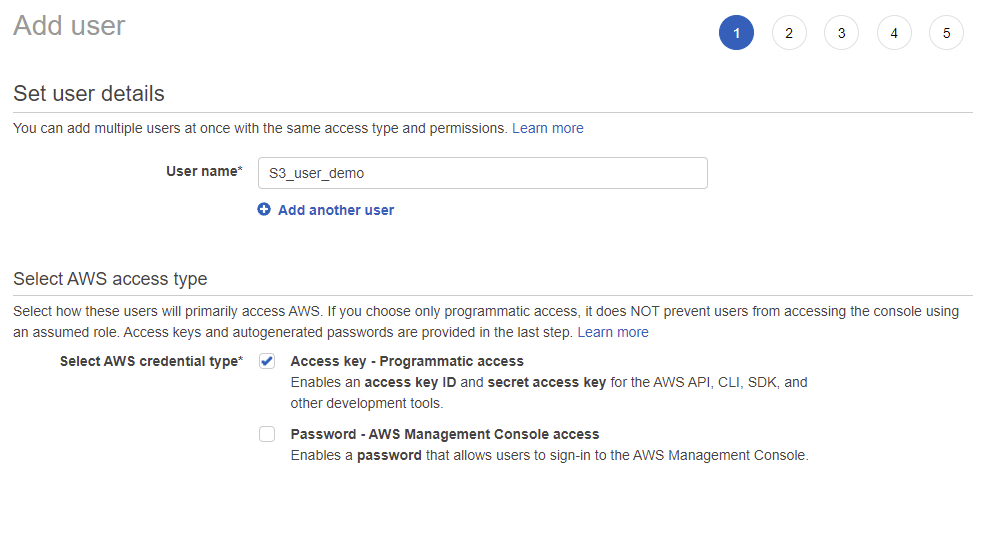
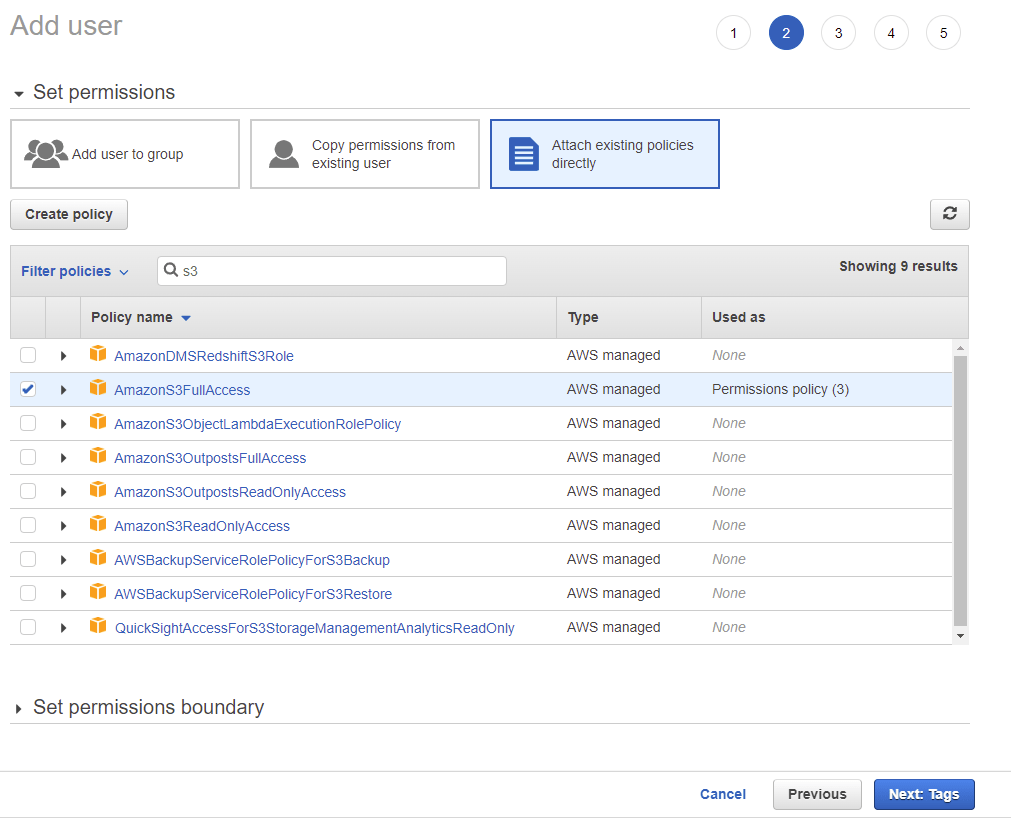
For the application side, avoid creating an IAM user with AdministratorAccess or AmazonS3FullAccess just to get past an initial 403 Forbidden. Give Kentico a dedicated IAM policy scoped strictly to the target bucket:
{
  "Version": "2012-10-17",
  "Statement": [
    {
      "Effect": "Allow",
      "Action": [
        "s3:ListBucket",
        "s3:GetBucketLocation"
      ],
      "Resource": "arn:aws:s3:::your-kentico-media-bucket"
    },
    {
      "Effect": "Allow",
      "Action": [
        "s3:GetObject",
        "s3:PutObject",
        "s3:DeleteObject"
      ],
      "Resource": "arn:aws:s3:::your-kentico-media-bucket/*"
    }
  ]
}
If an upload or image resize fails during testing, check CloudTrail or the exact IAM action in the exception message rather than loosening permissions across the whole AWS account.
Configure CloudFront caching and Kentico URL rewriting
Point your CloudFront distribution at the S3 bucket origin, attach your custom SSL certificate via ACM (in us-east-1 for CloudFront), and verify how Kentico generates media links. If you configure Kentico’s CDN URL or custom media handler to emit https://media.example.com/..., make sure the CloudFront cache policy respects query strings if your site relies on Kentico’s image resizing parameters (?width=800&height=600). Ignoring query strings in CloudFront is a classic trap that causes thumbnails and full-size images to overwrite each other in the edge cache.
Also check Cache-Control headers on uploaded objects. Static assets like banners and PDFs benefit from long edge TTLs, while frequently replaced files may need shorter TTLs or explicit CloudFront invalidation hooks when editors overwrite an existing filename in the Media Library.
Migrate and verify with a representative test batch
Never sync the entire production media folder blindly and call it done. Start in staging with a representative batch: a JPEG/WebP photo, an SVG icon, a large PDF brochure, and a resized thumbnail. Verify four operations end-to-end from the Kentico admin UI:
- Upload a new file and confirm it lands in the expected S3 prefix with the right
Content-Type. - Load the rendered page and check browser DevTools to confirm the asset returns
200 OKfrom CloudFront (x-cache: Hit from cloudfronton the second load). - Overwrite or resize the image and verify cache behaviour.
- Delete the file in Kentico and confirm the object is removed from S3.
Keep your original local media directory backed up and intact until production traffic has run cleanly through CloudFront for a few days. A copied bucket is not a finished migration until uploads, deletions, and edge caching all behave predictably under real editorial workflows.
Related reading
- Uploading to Amazon S3 from C# with an Explicit Object Contract
- Downloading from S3 Without Turning Object Keys into an Access Policy
Images from the original article
The following images are retained as historical context; interfaces and configuration options may have changed.