WordPress Scheduled Post Missed? Trace WP-Cron Before Adding a Plugin
A post shows “Missed schedule” even though its publish time has passed. WordPress scheduling depends on WP-Cron, which checks due events during site requests rather than running as a continuously active system service. That design is convenient for many sites, but traffic, loopback requests, caching and hosting configuration can affect when work runs.

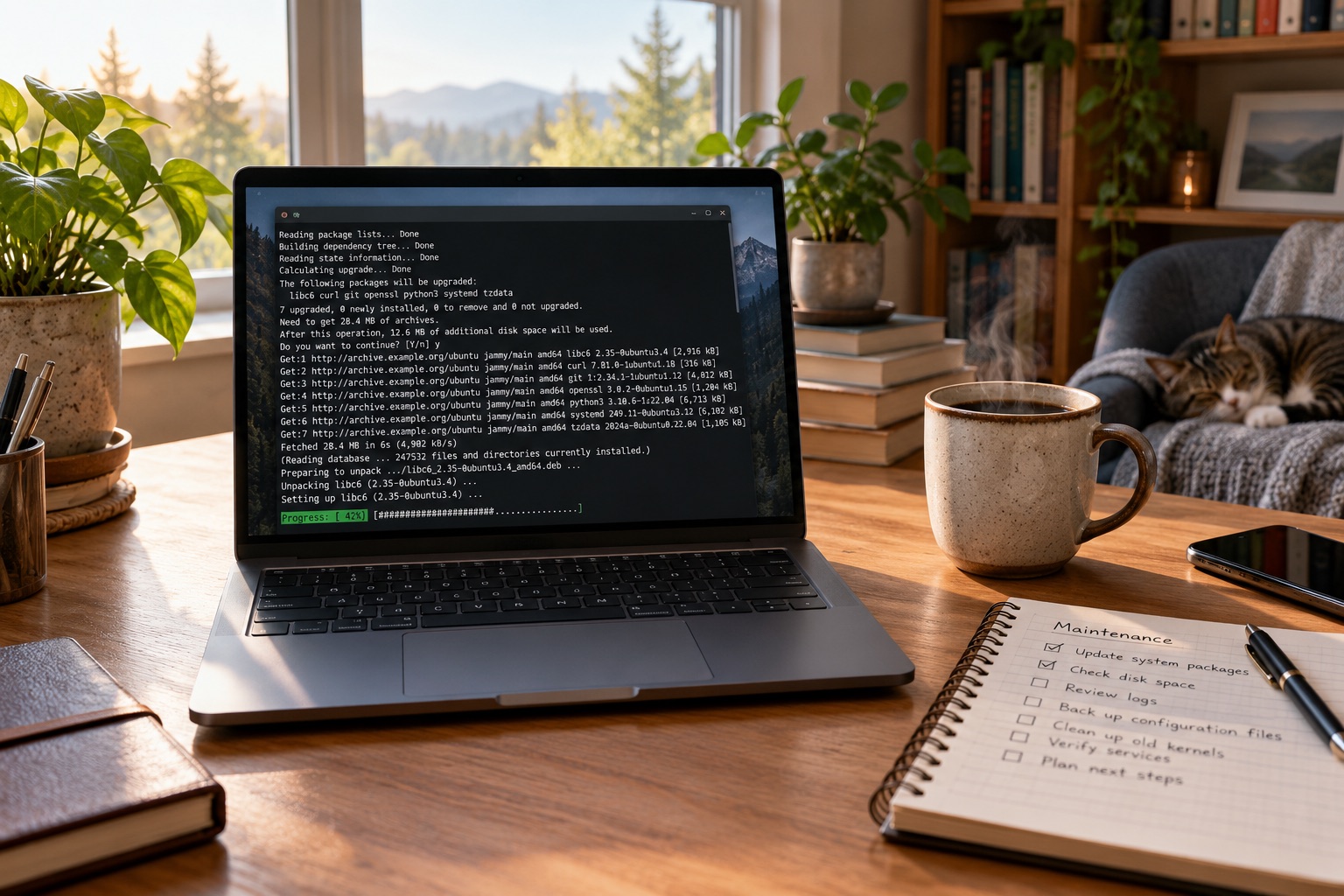
Editorial illustration; event timing varies by hosting and site configuration.
Summary
- WP-Cron is triggered by requests to the site, so it is not an exact-time scheduler by itself.
- Check the post timezone, Site Health, cron loopback and hosting configuration before installing a recovery plugin.
- A system cron can call
wp-cron.phpon a schedule, but configure it with your host and avoid duplicate event runners.
What happens when a post is scheduled?
WordPress creates a scheduled event for the post. When a request reaches the site after that event is due, WordPress checks cron events and attempts to run them. The WordPress Hosting Handbook describes this request-driven behavior. A quiet site may not receive a request close to the scheduled minute. A failed loopback request or hosting rule can also stop due events from running.
This means scheduled publishing is generally best-effort around the requested time, not a guarantee that every post goes live at an exact second. If a publication deadline matters, add monitoring or a host-supported system scheduler rather than assuming a plugin can fix every underlying issue.
Diagnose in this order
- Confirm the post status and time zone. Reopen the post and check its scheduled date/time. Compare WordPress Settings → General time zone with the calendar you intended. A mismatch can look like a cron failure.
- Check Site Health. Open Tools → Site Health and look for scheduled-event or loopback request errors. Note the exact message and whether it names a blocked HTTP request, authentication issue or server error.
- Check whether the site can reach itself. WP-Cron’s loopback request needs the site to make an HTTP request back to itself. Security rules, basic authentication, firewalls, DNS or server configuration can interfere. Ask your host to inspect the failed request and server logs rather than disabling protections blindly.
- Review traffic and caching context. On a low-traffic site, due events may wait for a later visit. A page cache should not normally be treated as the scheduler. Avoid excluding broad paths or bypassing security tools without understanding the host’s setup.
- Inspect cron configuration. If
DISABLE_WP_CRONis defined, the usual request-triggered runner may be disabled. That is commonly done when a system cron is configured. Confirm there is a replacement job and that it runs successfully before changing this setting. - Check logs and reproduce. Record a test post’s scheduled time, then check whether a due cron event ran. If you use WP-CLI or a host dashboard, follow the host’s supported method and capture the output. Test away from a time-sensitive production post.
When a system cron makes sense
A host-managed cron job can call wp-cron.php at a regular interval, making event processing less dependent on visits. WordPress’s developer documentation explains that disabling page-load spawning is appropriate when a real cron runner is in place. The exact command, URL, PHP binary and schedule depend on the host; use its documentation rather than copying a shell command from an unrelated server.
Make sure only the intended runner is active. If you disable WP-Cron but never configure a system job, scheduled posts and other plugin tasks may stop running. Conversely, running both methods unnecessarily can create extra requests. Do not set a very frequent interval without discussing server load and the host’s limits.
Recover a missed post safely
If the content should be live now, first verify the intended publish date, status and content. Publish it manually if appropriate, then create a low-risk test schedule to confirm whether events resume. Keep a brief record of the missed event and the fix. For a store or membership site, check any other scheduled tasks affected during the same interval.
A “missed schedule” helper plugin may detect and republish posts, but it can mask a broken scheduler or publish at an unintended time. Before adding one, inspect its maintenance history and behavior, test it on staging, and confirm how it handles multiple overdue posts. Plugins do not replace fixing a failed loopback or absent system cron.
Common mistakes
- Repeatedly changing the publish time without identifying the cause.
- Defining
DISABLE_WP_CRONwithout installing a replacement scheduler. - Blocking
wp-cron.phpglobally in a security rule without host review. - Installing several “missed schedule” plugins that may race to publish.
- Assuming the post time uses your computer’s local time zone.
For a broader maintenance routine, see how to test a WordPress backup without touching the live site. If the issue began after an update, isolate a plugin conflict safely before changing several settings at once.
My Take
A missed post is a useful symptom, not a diagnosis. I would start with time zone and Site Health, then ask the host about loopback and scheduler logs. A recovery plugin is a last-mile convenience only after the normal event runner is understood.
Bottom Line
WP-Cron is request-triggered, so it may not run at the exact scheduled minute. Find out whether traffic, loopback behavior or cron configuration is responsible, then use a host-supported system cron if your publishing needs require more predictable timing.