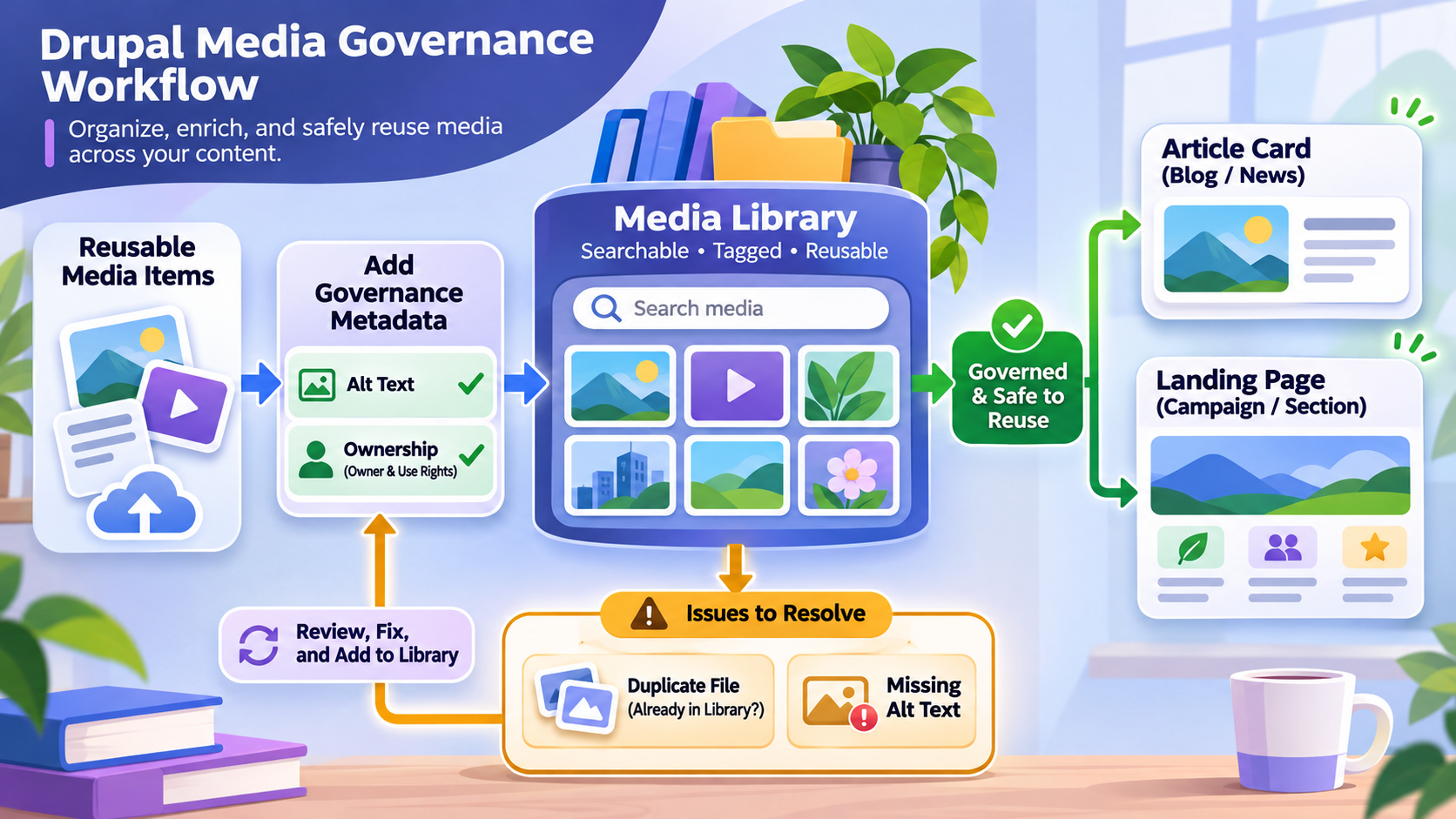
Editorial illustration; the library and pages are representative and are not a live Drupal installation.
Many Drupal teams begin by uploading an image directly while editing an article. That works for a small site, but repeated uploads quickly create duplicates, unclear filenames, missing alternative text, and files that nobody knows whether they can reuse. Drupal’s core Media and Media Library modules provide a stronger foundation, but the interface alone does not create governance.
Quick Answer
Use Media entities to represent reusable assets and Media Library to help authorised editors find and select them. Define a small number of media types, require useful metadata such as alternative text where it applies, set permissions by role, and agree on what should happen when an asset is replaced or retired. Do not enable the module merely because a library looks tidy; adopt it when reuse and ownership are real problems to solve.
What the modules do
Drupal’s Media module manages media entities such as images, documents, and other supported sources. Media entities can have fields and display settings, which makes them different from an anonymous file attached to one page.
The Media Library module adds an interface for finding existing media and adding new items. It can be used through a media reference field and, with the relevant editor configuration, through CKEditor. Drupal’s official documentation describes it as especially useful when a site has many assets that need to be found and reused.
When Media Library is a good fit
It is a good fit when several editors reuse the same logos, staff portraits, campaign images, downloadable documents, or product media. It is also useful when the organisation needs a place to review metadata and ownership rather than leaving every asset hidden inside an article edit form.
The benefits are smaller for a tiny site with one editor and a handful of permanent images. Introducing media types, permissions, migration rules, and training can add work. Decide based on the workflow, not on the assumption that every Drupal site needs the same modules enabled.
A safe setup workflow
- List the asset families the site actually uses, such as image, document, audio, or remote video.
- Create only the media types that support different fields, permissions, or rendering rules.
- Define required metadata. For images, decide how editors should provide meaningful alternative text and when an image is decorative.
- Configure media reference fields on the content types that need them.
- Enable the Media Library widget where editors need search and selection.
- Review permissions for creating, editing, deleting, and using media. Separate broad reuse from destructive actions where appropriate.
- Test adding a new item, finding an existing item, replacing a file, and rendering it in a real page.
- Document naming, ownership, licensing, and retirement rules before migration.
The menu names and available field options depend on Drupal version and site configuration. Test the actual roles used by editors rather than testing only as an administrator.
Metadata is part of the content
A filename such as IMG_4382.jpg does not help an editor decide whether an image shows the right event. A useful media item has a clear name, appropriate alternative text, and enough context for someone who did not upload it.
Alternative text should describe the information an image contributes, not repeat a filename or add decoration. A portrait may need the person’s name if that is relevant to the page. A decorative divider may need an empty alternative text value according to the site’s accessibility practice. Set editorial guidance instead of asking every editor to invent a rule.
Reuse without accidental global changes
Media reuse is not the same as syncing a complete page section. If five articles reference one media entity, replacing or editing that entity may affect how the asset appears in all five places. That can be desirable for a logo, but surprising for an event photograph.
Before replacing a media item, identify where it is used and whether the change is a correction, a redesign, or a new asset. For a genuinely new image, create a new media item and update the intended pages rather than rewriting history for every reference.
Permissions and ownership
An editor who can place an image into an article may not need permission to delete a media item used by the whole site. Review which roles can create, edit, delete, and administer media types. Assign an owner for licences and expiry dates when the site uses stock photography, campaign artwork, or documents with a validity period.
Do not assume a library makes copyright questions disappear. Record the source and usage limits where the organisation needs that evidence. A searchable asset without ownership information is still an operational risk.
Plan the migration instead of dragging everything across
Moving from file attachments to media entities is a content project, not just a module switch. Start with a sample of real pages and identify duplicate files, missing descriptions, outdated campaign artwork, and assets that should be private. Decide whether duplicates should be merged, left alone for historical reasons, or replaced with a canonical item.
Run the migration in a test environment and compare representative pages. Check image styles, responsive behaviour, download links, permissions, and editorial previews. Keep a mapping between old file references and new media items so a failed migration can be diagnosed without guessing. If a site has thousands of files, a staged migration with a rollback plan is safer than a single unreviewed import.
Performance and presentation choices
Media Library helps editors find assets, but it does not automatically make every image fast or visually appropriate. Configure image styles and responsive behaviour for the site’s actual display sizes. Use a sensible default for upload dimensions and explain when an editor should provide a smaller derivative rather than uploading a huge original.
For documents, decide whether the site should display an inline preview, offer a download, or do both. For external media, document the source and the privacy implications of embedding it. These decisions belong in the media type and rendering design, not in a different rule for every article.
A small operating routine
Once a month, review recently added media for missing alternative text, duplicate names, unexpected file types, and ownership notes. Once a quarter, review items tied to campaigns or licences that may expire. When an editor reports that an image is missing, check the media entity, the field reference, permissions, and the rendered display separately. This avoids deleting and re-uploading an asset when the real problem is a view mode or access rule.
Mistakes to avoid
Do not create a new media type for every small variation. Do not migrate duplicate files without a mapping plan. Do not make every field optional just to speed up uploading. Do not let all editors delete shared media. Do not test only the administrator workflow. Do not forget that contributed integrations may have compatibility requirements with Drupal core Media entities.
My Take
Media Library is most valuable when a site treats assets as managed content rather than as attachments that happen to be stored somewhere. Start with two or three real reuse problems, define the smallest workable model, and expand only when the editorial workflow proves the need.
Bottom Line
Drupal Media Library can make assets easier to find and reuse, but governance still belongs to the team. Pair a small media model with useful metadata, role-based permissions, and a replacement policy. Then test the workflow with the people who will operate it every day.