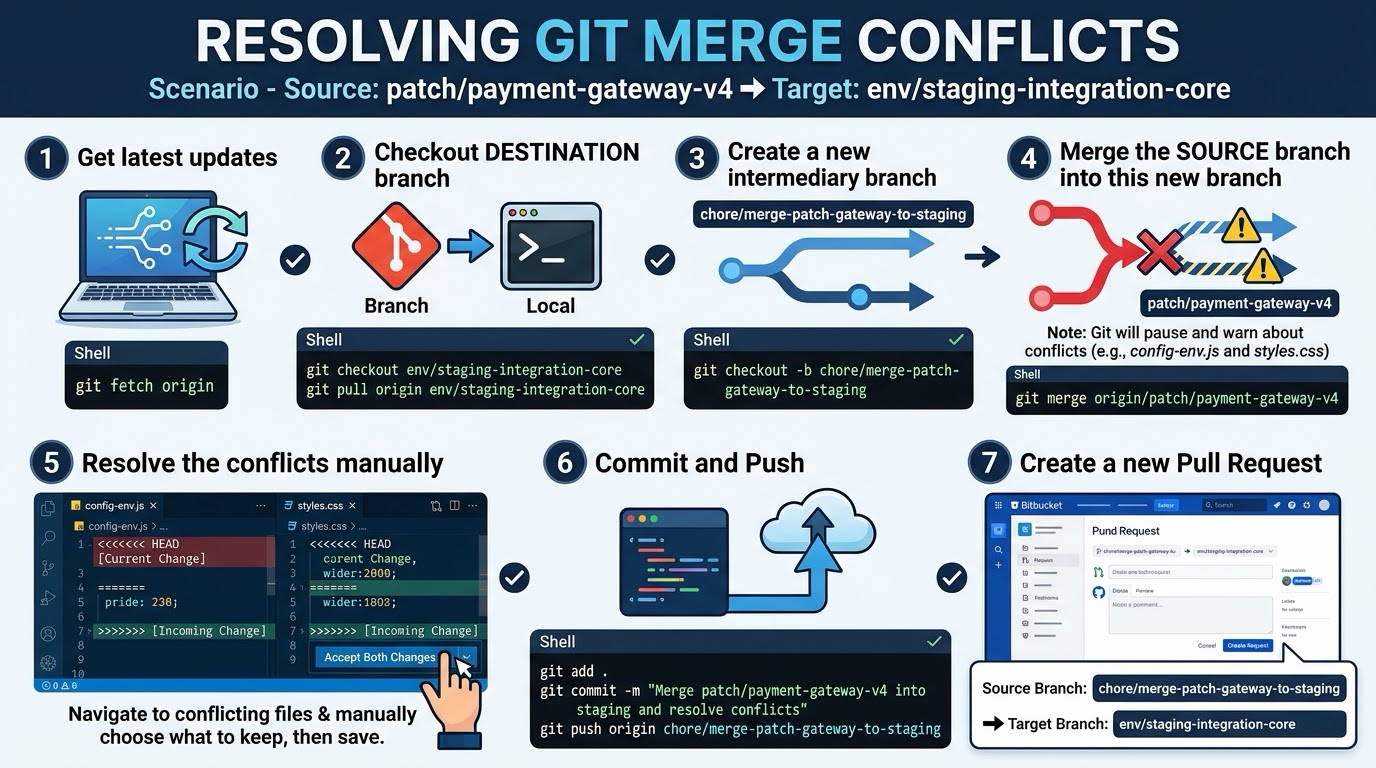
Editorial illustration: resolving a patch branch into a shared staging integration branch through a temporary intermediary branch.
A Git merge conflict is not Git telling you that the code is permanently broken. It is Git telling you that two lines of development changed the same part of a file and it cannot safely decide which meaning should win.
The risky response is to resolve the conflict directly on a shared staging branch, especially when several people or a deployment pipeline depend on it. A safer response is to create a temporary branch from the latest destination branch, merge the source branch there, resolve the conflict in isolation, run the checks, and open a pull request back to the destination.
That is the workflow in the attached diagram. The example uses patch/payment-gateway-v4 as the source and env/staging-integration-core as the destination.
Quick Answer
Fetch the latest remote state, update the destination branch locally, create a new intermediary branch from it, and merge the source branch into the intermediary:
git fetch origin
git switch env/staging-integration-core
git pull --ff-only origin env/staging-integration-core
git switch -c chore/merge-patch-gateway-to-staging
git merge origin/patch/payment-gateway-v4
If Git reports conflicts, inspect each marked file, decide what the combined code should mean, remove the conflict markers, run tests, stage the resolved files and commit the merge. Push the intermediary branch and open a pull request into env/staging-integration-core.
The important detail is that the destination branch remains untouched while you investigate. If the merge becomes confusing, you can abort it or delete the temporary branch without damaging the shared branch.
Why merge through a temporary branch?
The destination branch represents a shared state. It may be deployed to staging, used by testers or watched by another pull request. Resolving conflicts directly there creates a moving target: someone else can push while you are editing, and a partially resolved file can affect an environment before it has been reviewed.
An intermediary branch creates a safe workspace with a clear starting point. Its history identifies the destination commit, source branch and resolution work, making the pull request easier to review.
The example branches
Imagine that a payment gateway patch is ready, but the shared staging integration branch has changed since the patch was created:
- Source:
patch/payment-gateway-v4 - Destination:
env/staging-integration-core - Intermediary:
chore/merge-patch-gateway-to-staging
The source contains the payment change. The destination contains the latest group of changes already selected for integration testing. The intermediary is not a new permanent environment. It is a temporary proposal for combining those two histories.
Do not assume that “ours” always means the branch you want to keep. During this merge, HEAD is the intermediary branch based on the destination, while the incoming side is the source branch. The correct choice depends on the file’s intended behaviour, not on the label shown by the editor.
Step 1: Start with a clean worktree
Before fetching or merging, check your local state:
git status
If you have unrelated edits, commit them on their own branch, stash them with a clear reason, or use a separate worktree. Do not begin a complicated merge with half-finished changes in the same files. Git’s merge documentation warns that uncommitted changes can make an abort unable to reconstruct the original state perfectly.
If a merge is already in progress, do not run another merge on top of it. Check the status and decide whether to continue resolving or run git merge --abort.
Step 2: Fetch current remote information
Run:
git fetch origin
Fetching updates remote-tracking references such as origin/patch/payment-gateway-v4 without changing your current files. Do not assume that a local branch reflects the remote branch.
Step 3: Update the destination branch
Switch to the destination and fast-forward it:
git switch env/staging-integration-core
git pull --ff-only origin env/staging-integration-core
The --ff-only option refuses to create an unexpected local merge while updating the destination. If it fails, stop and understand why. You may be on an old local branch, or your local branch may contain commits that are not on the remote. Do not solve that uncertainty by forcing a reset or deleting work.
At this point, the local destination should represent the branch you intend to protect:
git status
git log --oneline --decorate -5
Step 4: Create the intermediary branch
Create a descriptive short-lived branch from the updated destination:
git switch -c chore/merge-patch-gateway-to-staging
The prefix says that this is a chore or integration task, while the rest identifies the source and destination. A ticket number can make the branch easier to find. Avoid a vague name such as fix-conflict; several months later, nobody will know what it merged.
The branch now has the destination as its HEAD. That is why a pull request from this branch back into the destination will show the merge resolution as the proposed change rather than unrelated destination history.
Step 5: Merge the source branch
Merge the fetched source reference:
git merge origin/patch/payment-gateway-v4
If Git can combine everything automatically, read the output and inspect the result anyway. If it cannot, the merge pauses and marks the conflicting paths. Run:
git status
git diff
git diff --name-only --diff-filter=U
The first command gives the overall state, the second shows the unresolved differences, and the third lists files that are still unmerged. Do not rely only on the editor’s open tabs; git status is the source of truth for whether every conflict has been handled.
Step 6: Understand the conflict markers
A text conflict usually looks like this:
<<<<<<< HEAD
current destination version
=======
incoming source version
>>>>>>> origin/patch/payment-gateway-v4
The marker labels are not the answer. Read the surrounding function, configuration structure or stylesheet rules. Ask what the file must do after both changes are present.
You may keep the destination version, keep the source version or combine both into a new result. The correct choice depends on intended behaviour, not on the label shown by the editor.
For a payment gateway configuration, do not blindly accept both values. Check which environment owns the credential, whether the setting is a secret, and whether the selected endpoint matches the staging environment. For CSS, inspect the selector and responsive behaviour rather than choosing a side based on colour alone.
After editing, remove every <<<<<<<, ======= and >>>>>>> marker from the file. Save it, then inspect the diff:
git diff -- config-env.js styles.css
The goal is not merely a file that parses. It is a coherent result that preserves the intended behaviour from both branches.
Step 7: Test the combined result
Run the project’s checks before staging the resolution. For example:
npm test
npm run build
Use the actual commands for the repository. Test the area touched by the merge as well as the general build. A merge can be syntactically valid while changing a payment setting, route, migration, feature flag or asset reference in a way that only appears at runtime.
Check the files again after tests. If the result is not understandable, stop. You can return to the state before the merge with:
git merge --abort
Git documents merge --abort as the recovery path for an interrupted merge, but it also recommends starting with committed or stashed work so the original state is easier to reconstruct.
Step 8: Stage and commit only the resolution
Once the tests pass, stage the files that were intentionally resolved:
git add config-env.js styles.css
git status
git diff --cached
git commit -m "Merge payment gateway patch into staging"
Do not use git add . automatically when the worktree contains unrelated files, generated output or local notes. The staged diff should show the exact files and decisions that reviewers need to understand.
The merge commit records that two lines of development were combined. If Git says there is nothing to commit, check whether the merge completed as a fast-forward.
Step 9: Push and open the pull request
Push the intermediary branch:
git push -u origin chore/merge-patch-gateway-to-staging
Open a pull request with:
- source branch:
chore/merge-patch-gateway-to-staging; - target branch:
env/staging-integration-core; - a link to the original patch or ticket;
- a summary of each conflict decision;
- tests run and any staging checks still required.
The reviewer should not have to guess whether a conflict was resolved by keeping the destination, keeping the source or combining both. Explain the reason, especially for configuration, migrations and security-sensitive files.
When to stop and ask for help
Pause when the conflict involves business rules you do not own, irreversible migrations, production credentials, payment behaviour or a file whose history you cannot interpret. A clean-looking merge can still be semantically wrong.
Use history to gather context when needed:
git log --merge --oneline -- config-env.js
git blame -L 20,40 -- config-env.js
Then ask the owner a focused question with the two competing behaviours and the test result. “Which version should I keep?” is less useful than “The destination selects the staging endpoint, while the patch adds the v4 timeout; should the final config use both, and where should the value come from?”
Common mistakes
Do not always choose “ours” or “theirs,” delete a block just to remove markers, or commit before testing. Also watch for a stale intermediary branch: if the destination changes while the pull request is open, update it deliberately, rerun the resolution and repeat the relevant tests.
My Take
Conflict resolution is less frightening when it is treated as integration work rather than emergency text editing. The temporary branch gives the resolver room to understand the two histories, and the pull request gives the team a chance to review the meaning of the combined result.
The best signal that a conflict was resolved well is not that Git stopped complaining. It is that the resulting code has a clear reason, passes the right tests and can be explained to the person who will deploy it.
Bottom Line
Protect the shared destination branch. Fetch current changes, update that destination, create an intermediary branch, merge the source there, resolve each file according to intended behaviour, test the combined result, commit only the resolution and open a pull request.
If the merge becomes unclear, use git merge --abort and restart from a clean state. A few extra minutes of controlled investigation are cheaper than silently shipping a conflict resolution that compiles but changes the wrong behaviour.
Sources: Git merge documentation, Git’s advanced merging guide, and Git’s basic branching and merging guide.