Editorial illustration.
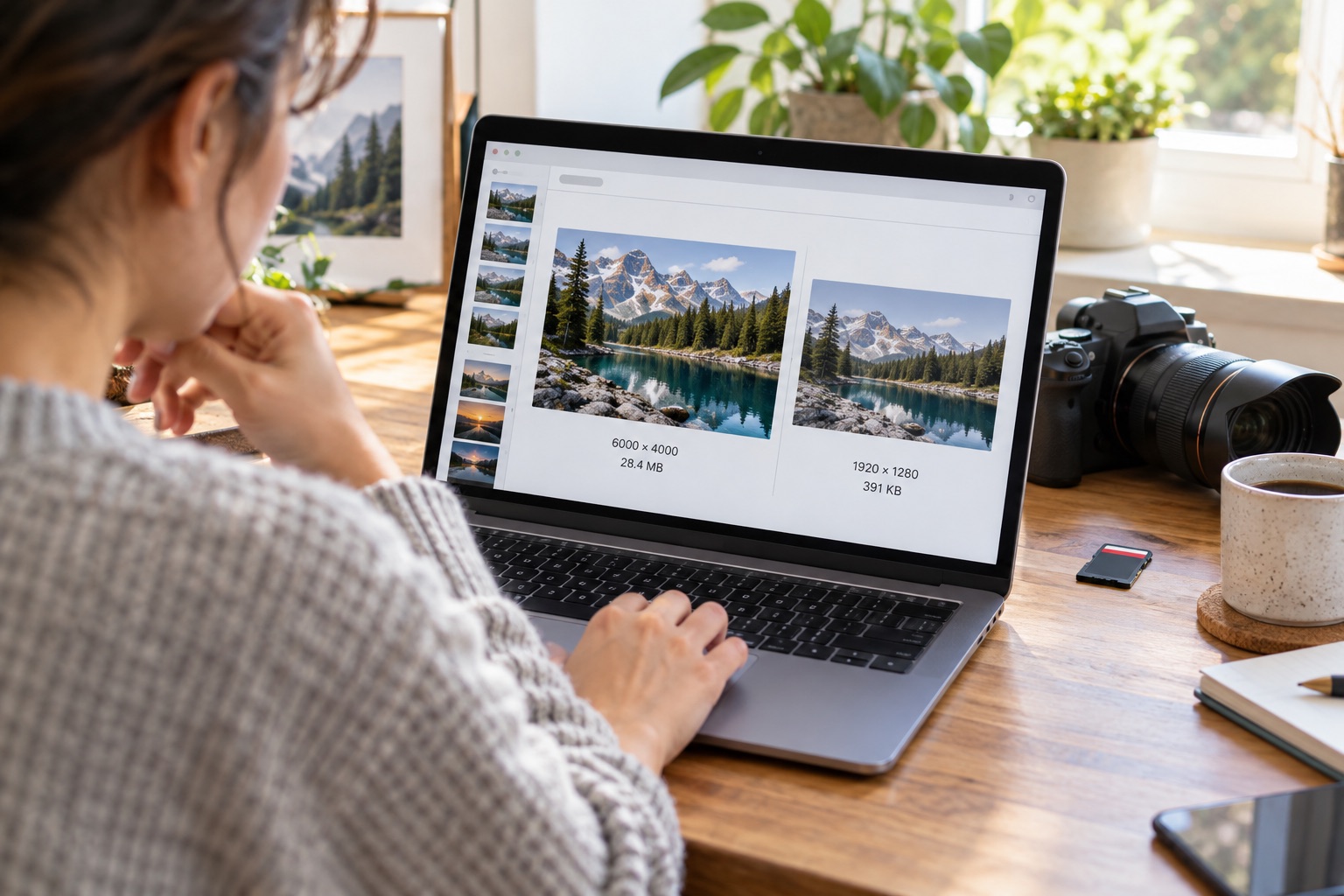
An image can look perfect in the editor and still make a page feel slow. The usual culprit is not always a broken plugin or an underpowered host. It may be a 6,000-pixel camera original uploaded for a content column that is only 800 pixels wide.
WordPress already does useful work when an image is uploaded: it can create several intermediate sizes and add responsive image information to content. But that does not make every upload efficient, and it does not fix images inserted with the wrong size, a theme that asks for oversized assets, or a page covered in heavy decorative media.
Quick Answer
Start with the display size, not the camera’s maximum size. Resize and compress the original before upload when possible, choose the appropriate image size in the editor, keep meaningful dimensions in mind, and verify the generated HTML. Use WebP or AVIF when your workflow and browser support requirements allow it, while keeping a sensible fallback.
Do not install several image-optimisation plugins and hope they cancel each other out. Pick one approach, test it on a staging copy or a small sample, and measure the page before and after.
Why an oversized image hurts
A browser must download image bytes before it can display them. A large image can compete with the page’s HTML, CSS, fonts, and scripts. On a mobile connection, the difference between a few hundred kilobytes and several megabytes is noticeable.
There is also a rendering problem. If a browser downloads a 4,000-pixel image and displays it at 600 pixels, the extra pixels do not improve the visible result on that layout. They increase transfer and decoding work. The right target depends on the layout, device density, crop, and the visual importance of the image, but “upload the original and let CSS shrink it” is rarely a good default.
What WordPress already provides
WordPress has native responsive-image support. Its generated markup can include srcset and sizes, allowing the browser to choose from available image sizes for the viewport and display context. WordPress also creates intermediate sizes when images are uploaded, depending on the site settings and theme.
That is helpful, but it has boundaries:
- It cannot make a poorly composed image relevant to the page.
- It cannot undo every oversized original stored on the server.
- It depends on the theme and markup using the responsive information correctly.
- It may not know the true rendered width of a custom layout unless
sizesis accurate. - It does not replace compression, format decisions, or a sensible content workflow.
The feature is a safety net, not a reason to ignore the source file.
A practical image workflow
1. Measure the space where the image will appear
Look at the article column, hero area, card grid, or gallery. If the content column is about 760 pixels wide, a 6,000-pixel upload is likely more than that placement needs. Retina and high-density displays can justify a larger source, but that still does not mean the camera original must be served everywhere.
For a reusable image that appears in several contexts, keep a high-quality master outside the public upload workflow and create web-ready derivatives. This keeps editing flexibility without making every visitor download the master.
2. Choose the format for the content
Photographs usually suit JPEG, WebP, or AVIF. Screenshots, diagrams, and images with sharp text need extra care because aggressive lossy compression can create halos and blur. PNG may still be appropriate when precise edges or transparency matter.
WebP and AVIF often offer better compression than older formats, but the best choice depends on your WordPress stack, optimisation tool, CDN, and fallback strategy. Do not convert a diagram blindly and assume the result is better; compare readability at the actual display size.
3. Resize before or during upload
If you can resize an image before uploading, do it. For an existing workflow, let WordPress generate useful intermediate sizes and select the size that matches the placement. Do not choose “Full Size” by habit when “Large” or another generated size is enough.
The exact width is a design decision. A banner, a content image, and a small related-post card do not need identical dimensions. Cropping can also be better than downloading a large image and asking CSS to hide most of it.
4. Add useful alternative text
Alt text is not a performance setting, but it is part of a responsible image workflow. Describe the information or function the image provides. A decorative image may have empty alt text when it truly adds no content; a chart, product image, or instructional screenshot needs a useful description.
Avoid stuffing keywords into alt text. A short, accurate description is better for people using assistive technology and for cases where the image cannot be displayed.
5. Check the HTML and network request
Open the published page in a browser, inspect the image element, and look for srcset, sizes, intrinsic dimensions, and the actual requested URL. The browser’s Network panel can show the response size and whether the page is downloading the original when a smaller candidate exists.
Test the page at a narrow viewport and a normal desktop width. A theme may use a different image component for the hero, featured image, or related-post card. Check each important template rather than assuming one successful article proves the whole site is efficient.
What to do with an existing library
Do not bulk-replace every image before you understand how it is used. An image may appear in an old post, a reusable block, a landing page, an email template, or a social preview. Create a sample inventory first: filename, dimensions, file size, format, and the pages where it appears.
Start with the largest files that appear on high-traffic pages. Keep the original until the replacement has been tested, and make sure the image URL, crop, caption, and focal point remain correct. If you change URLs, handle redirects or update references according to your site’s workflow.
WordPress’s Media settings control some generated sizes, but changing settings does not automatically rebuild every old image. Regeneration tools can create more files and consume storage, so use them deliberately and check the result.
Should you install an optimisation plugin?
An image plugin can be useful when several editors upload media, you need automatic resizing or conversion, or you want a repeatable compression policy. The trade-offs vary: some tools process locally, some use a remote service, some may require a paid quota, and some add another background task or settings screen to maintain.
Before installing one, check:
- Does it preserve the original or replace it?
- Where is processing performed, and does that fit your privacy requirements?
- Does it generate WebP or AVIF with a fallback that your site can serve correctly?
- Can you exclude logos, screenshots, or images where lossless quality matters?
- What happens when the service quota, license, or API connection ends?
- Can you test and restore a previous version?
Install one primary optimiser, not several competing systems. A plugin that changes file names, delivery URLs, lazy-loading behaviour, and generated sizes may interact with a CDN or cache layer. Introduce it during a maintenance window and measure representative pages.
Lazy loading is not a complete solution
Lazy loading can delay images that are below the initial viewport, reducing early work. It does not make a hero image small, and incorrectly lazy-loading the main visible image can delay the most important visual element. Let the theme or WordPress decide sensibly where possible, then inspect the result.
Likewise, a CDN can deliver bytes from a nearer location, but it cannot turn a needlessly large source into a small one unless image transformation is configured and working. Delivery and source optimisation are related but separate decisions.
Common mistakes to avoid
- Uploading the camera original and always selecting Full Size.
- Converting every image to one format without checking text and transparency.
- Installing multiple optimisation plugins with overlapping rewrite rules.
- Deleting originals before confirming the replacement is used everywhere.
- Assuming a green audit score means every image decision is correct.
- Ignoring image dimensions because the CSS display width looks small.
- Treating alt text as a keyword field instead of an accessibility description.
My Take
The best WordPress image optimisation is mostly a content workflow. Decide what the image is doing, size it for that job, preserve the information people need, and verify what the browser actually downloads. Plugins and CDNs can make the workflow easier, but they cannot replace that judgment.
Bottom Line
Audit one important page today. Find its largest image, compare the displayed width with the requested file, and inspect whether WordPress is serving an appropriate responsive candidate. Then make the smallest safe improvement and measure again. A consistent upload-and-review habit will help more pages than a collection of optimisation settings nobody understands.