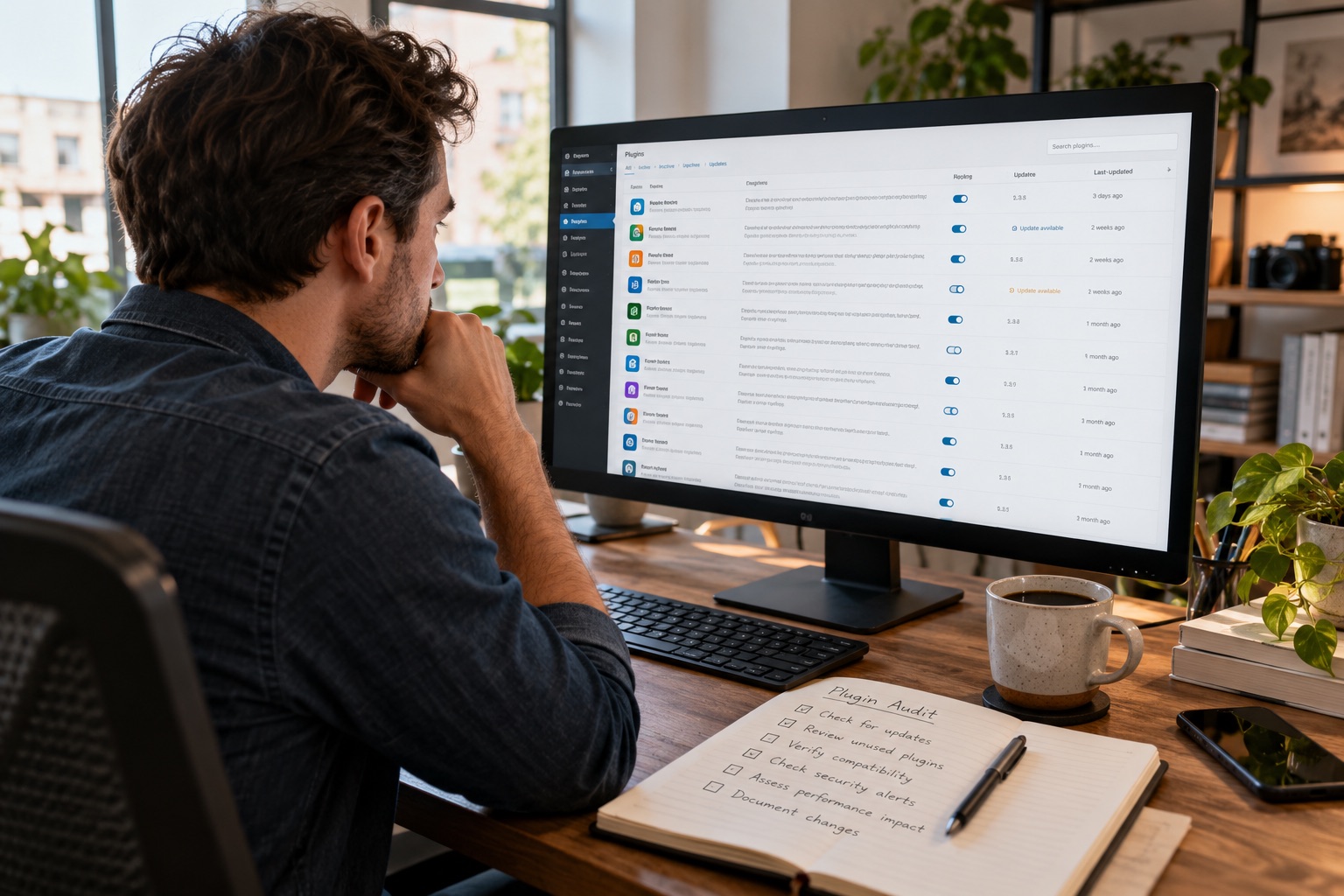
Editorial illustration; the dashboard is representative and is not a real installation.
WordPress updates are easiest to postpone when a site appears to be working. That is also when a small release can quietly become important. The official WordPress release archive lists WordPress 7.1.4 as a maintenance and security release dated October 28, 2026. The right response is not to click Update blindly or to panic; it is to apply the release through a repeatable maintenance routine.
Quick Answer
Check that your site is on a supported branch, take a restorable backup, review the release notes and plugin/theme compatibility, apply WordPress 7.1.4 in a staging copy when possible, and verify the public site and admin workflows. If staging is not available, schedule the update during a quiet period and make sure you can roll back.
The version and date above are the context for this article. Future maintenance releases may supersede 7.1.4, so use the official WordPress release archive and dashboard notices rather than treating an old article as a permanent update instruction.
What a maintenance and security release means
A maintenance release can contain bug fixes and security fixes without being a major feature release. That does not tell you the exact impact on your installation. Themes, plugins, hosting configuration, PHP versions, caching layers and custom code can change the outcome.
Do not infer that the release is optional because your homepage loads. A vulnerability may affect an admin path, a less-used feature or a particular configuration. Do not infer that an update will fix every security issue either; outdated plugins, weak passwords, exposed backups and unsafe server settings remain separate responsibilities.
A safer update sequence
1. Confirm the site and release context
Look at the WordPress dashboard and the official release archive. Confirm the version currently installed, the target version, the date of the target release and whether your site is on a supported branch. Record this in your maintenance note.
If a dashboard message looks unusual, open the official WordPress update screen or visit WordPress.org directly instead of following an unfamiliar download link.
2. Take a backup you can restore
Back up the database and the files needed to recreate the site, including uploads, themes, plugins and configuration. A backup is useful only if it is available, complete enough for your recovery goal and actually restorable. Keep a copy outside the live server.
Do not replace a test restore with a green backup-plugin message. For a small site, restore into a separate staging location and check that the homepage, one article, the media library and the admin login work.
3. Read the relevant notes
Check the official WordPress announcement, release archive and supported-versions documentation. You do not need to read every historical change, but you should understand whether the update is security-related, whether it changes requirements and whether a follow-up release is already available.
Keep the date and version in your maintenance record. This prevents future troubleshooting from collapsing several updates into one vague memory.
4. Review extensions and custom code
List active plugins, the theme, must-use plugins and custom snippets. Look for abandoned components, pending updates and code that hooks into login, publishing, REST requests, caching or the block editor. A core update may expose an old compatibility problem that was already present.
Do not “solve” a compatibility warning by disabling security controls on the live site. Test the specific component and use its maintainer’s documentation.
5. Apply the update in staging
Clone or refresh staging from a recent backup, apply the core update and run the workflows that matter: login, edit, preview, publish, search, forms, checkout or membership functions. Check scheduled tasks if the site relies on them.
If the site is static or uses a separate build step, verify that the update flows through the actual publishing pipeline rather than only working on an admin screen.
6. Update production deliberately
Choose a quiet window, tell collaborators and pause unrelated changes. Confirm the backup location and rollback plan before clicking the update button. Keep the maintenance note open so you can record the time, version and result.
If the update fails, stop and capture the error. Do not repeatedly refresh, delete random plugins or make several emergency changes at once.
7. Verify the visitor path
Open the homepage and a representative article in a private browser window. Check images, styles, menus, forms, search and any business-critical flow. Then test the admin editor and confirm that a harmless draft can be saved.
Check server logs and monitoring after the update. A successful dashboard message is one signal, not the complete verification.
What not to do
Do not disable automatic updates across the board without a replacement maintenance process. Do not install a second “security” plugin simply because an update feels risky. Do not restore a backup without understanding which content created after the backup would be lost. Do not make a major theme redesign part of the same maintenance window.
Do not announce that a site is secure because one core release was applied. Security is a continuing practice involving accounts, extensions, hosting, backups, logs and recovery.
If you cannot use staging
Reduce the blast radius. Take a fresh backup, confirm a rollback path, update during a quiet period, keep a second administrator available and test the most important visitor journey immediately. Start with a low-risk site if you manage several installations. Afterward, write down what you could not test so the next maintenance cycle can improve.
My Take
The useful lesson from a maintenance and security release is not a single version number. It is the habit of treating updates as operational work: verify the source, preserve recovery options, test the workflows and record what happened. That turns a stressful button click into a controlled change.
Bottom Line
WordPress 7.1.4 was listed by WordPress.org on October 28, 2026 as a maintenance and security release. Check the official archive for the current release when you act, then use a backup, staging test and public verification before closing the task.