WordPress Draft, Private or Password Protected? Pick the Right Visibility Setting
You have a page you are not ready to show everyone. Should it stay a draft, become private, or require a password? Those options look similar in the editor, but they solve different publishing problems.
Use a draft when the content is not ready to publish. Use private when only trusted logged-in site roles should see it. Use password protected when a published page should be readable by people who share a password. None of these is a substitute for a membership system or a place to store sensitive documents.
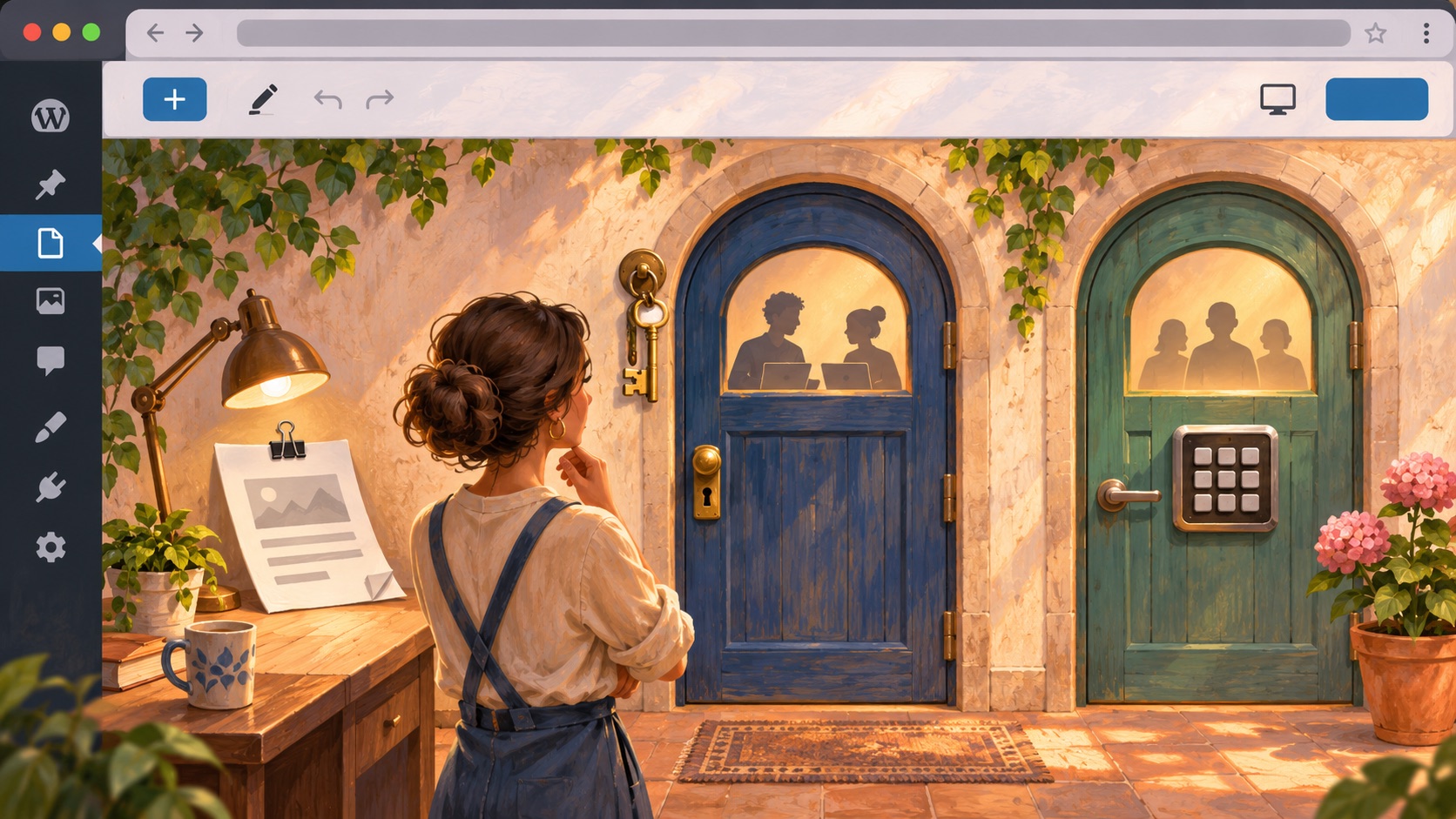
Editorial illustration.
Summary
- Draft means the work is not publicly published; it is the best choice for review before launch.
- Private content is published but access is limited to users with the relevant capability, usually Editors and Administrators by default.
- Password protection lets visitors who know a shared password view the page, but the title and URL may still be visible and the password can be forwarded.
Start with the audience, not the button
Ask who needs to see the content and what they need to do with it. A draft is for a writer, editor or reviewer who is preparing material. A private post is useful for internal notes or a page shared among trusted WordPress users. Password protection can work for a temporary announcement or a small group that does not need WordPress accounts.
WordPress treats status and visibility as related but distinct ideas. A draft is not published. Private content is published with restricted viewing. Password-protected content is also published, but the reader must enter the password. That can affect workflows: private and password-protected pages have a public URL, and a visitor may see a title or an excerpt in some site contexts even when the full body is protected.
For a page that must be accessible only to named customers or members, use a proper user or membership access system configured for that purpose. A single shared password cannot tell you which person read a page, and anyone who receives it can pass it on.
Set visibility in the block editor
- Open the post or page. In the editor, select the settings sidebar if it is hidden, then open Status or Summary → Visibility. The exact label can vary by WordPress version and editor layout.
- Choose Draft if it is still being prepared. Save or update it without publishing. Use a preview link for review when appropriate, and remember that sharing a preview link is still sharing access to unpublished content.
- Choose Private for logged-in team access. Confirm which site roles can read private content. With the default capability setup, Editors and Administrators are generally the intended audience; custom roles and plugins can change this.
- Choose Password Protected for a shared passcode. Enter a unique password, then publish or update. Share the password through a separate channel from the page URL when the content warrants that separation.
- Check the result as a visitor. Open the URL in a private browser window or a separate account. Confirm what the title, excerpt and content look like before sending the link to anyone.
- Recheck after changing the setting. WordPress applies visibility when you save or publish the update. Do not assume changing the radio button alone has completed the action.
The WordPress documentation describes these choices in the page and post settings. It also warns that site Editors or Administrators can manage private content and may be able to view protected content inside the editor. That matters on a site with multiple trusted staff accounts.
Which option fits common situations?
| Situation | Better fit | Why |
|---|---|---|
| A draft announcement waiting for approval | Draft | It is not ready to publish and may still change. |
| A working page for site staff only | Private | Access follows WordPress user capabilities instead of a shared passcode. |
| A short event note for a small group | Password protected | Recipients can read it without creating accounts, if the information is low-risk. |
| A customer portal or paid resource library | Membership or authenticated access | You need individual access control, account management and possibly auditability. |
| A document containing personal, financial or confidential data | A secure document system | A page password is not a robust document security boundary. |
A protected page can be convenient, but convenience has limits. WordPress may store a browser cookie after a reader enters the password so they do not have to repeat it on every visit. If several pages use the same password, the same credential may unlock more than one. Give each short-lived use case a separate passcode and change it when the audience changes.
Why the wrong setting causes confusion
If you save a page as private and then open it in a logged-out browser, seeing an access-denied result is expected. If a teammate cannot view it, check their role and capabilities instead of repeatedly changing it to public. If you password-protect a page and its title appears in an archive or search result, that does not necessarily mean the full body is exposed; inspect the actual visitor view and theme output.
For an editorial review, a draft plus a controlled preview is usually simpler than publishing a private page and later remembering to change it. For an internal staff reference that should remain live but unavailable to ordinary visitors, private visibility is clearer. For external readers with no accounts, a password can be an acceptable convenience for non-sensitive material.
Visibility settings also do not make the entire site private. If your goal is to prevent public access to a staging site, use an environment-level restriction such as host authentication or an IP allowlist. Do not password-protect pages one by one and assume you have hidden the rest of the site.
Mistakes to avoid
- Publishing a draft publicly because you want one person to review it.
- Using Private when the intended readers do not have WordPress accounts.
- Treating a shared page password as proof of who viewed the page.
- Reusing one password across many posts or a long-lived customer workflow.
- Putting confidential data in a page because its content is password protected.
- Forgetting that a theme, cache, search integration or plugin can affect titles, excerpts and page listings.
Before sending a protected link, test it in a logged-out browser and confirm that the password form appears as expected. If you change the page back to Public later, make sure that is intentional: the setting change can make the content available to search engines and visitors.
For related publishing workflows, see how to choose synced or unsynced WordPress block patterns and how to test a WordPress backup without touching the live site. If an editor setting itself is involved, our guide to registering and sanitizing WordPress plugin options covers a separate developer task.
My Take
I would keep a page as a draft until the content and audience are settled. Password protection is useful for convenience, not identity verification. If you need to know exactly which person can access a resource, individual accounts are worth the setup work.
Bottom Line
Choose Draft for unfinished content, Private for capability-controlled staff access, and Password Protected for low-risk content shared by passcode. Test the page as a visitor before sending the link, and move sensitive or member-only workflows to individual access controls.


