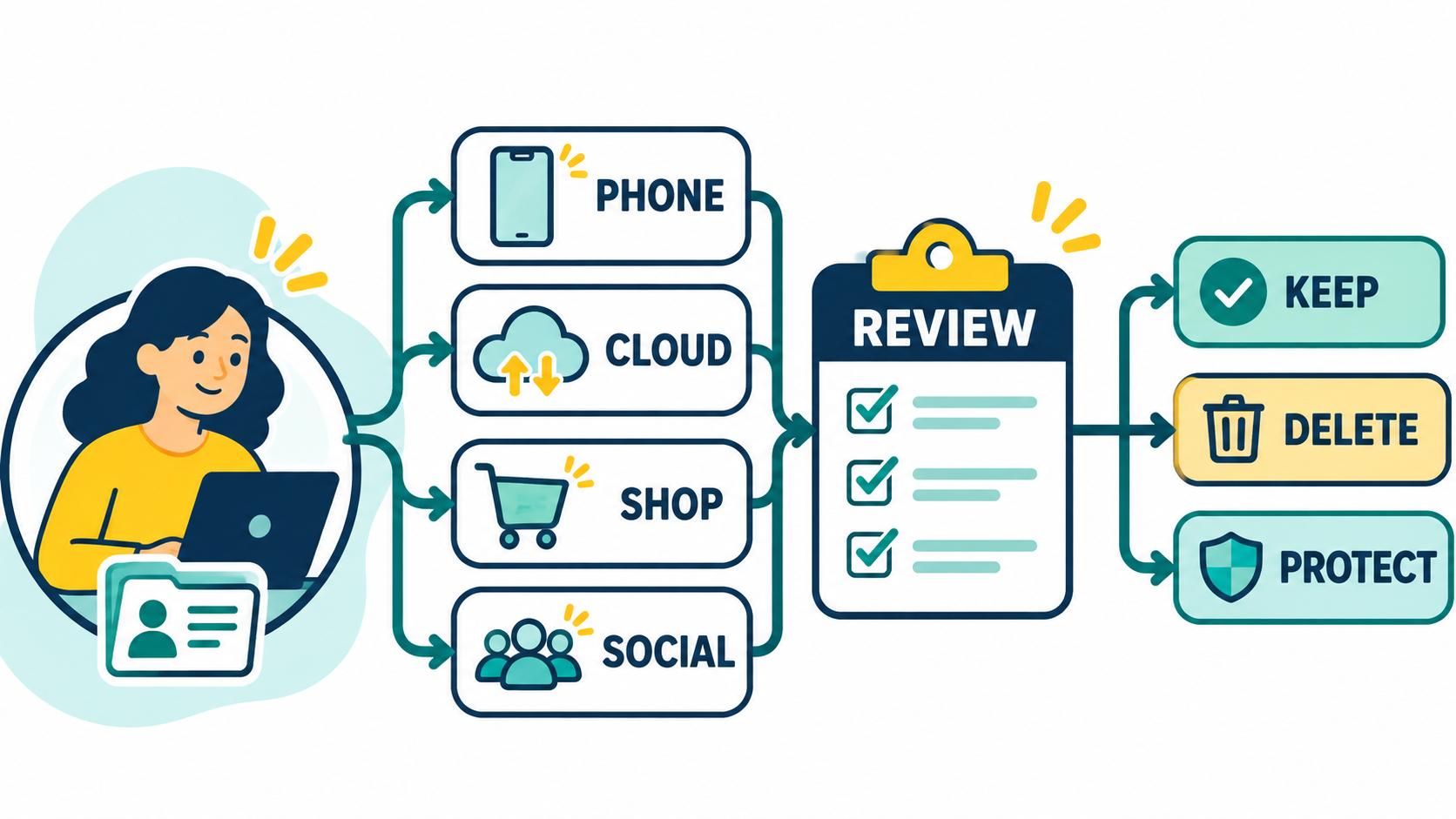
Editorial illustration; the destinations shown are representative examples, not a list of specific services.
Many people try to improve privacy by changing settings one account at a time. That can help, but it is easy to miss the bigger picture. Your important information may be spread across a phone, email account, cloud drive, shopping site, messaging app, old laptop and several services you rarely open.
A personal data map is a simple inventory of those places. It does not need to contain every file or every website you have ever visited. Its purpose is to show where sensitive information lives, what access it has, and which small actions reduce the most risk.
Summary
- A personal data map lists important information, its location, access route, retention need and protection priority.
- Start with accounts and devices that can unlock many other services, then review copies, sharing and recovery options.
- Make one small change per item—remove an unused copy, tighten access, update recovery details or test a restore.
What a data map is—and is not
Think of the map as a table, not a surveillance project. A useful row might say “tax documents — cloud drive — shared with accountant — retain — multifactor authentication enabled.” Another might say “old phone photos — laptop and phone — private — archive and back up.”
The map is not a password list. Never put passwords, recovery codes or private keys in a plain spreadsheet. It is also not a promise that a service is safe because it has a privacy policy. The map helps you ask better questions: what was collected, where is it copied, who can access it, and what happens if the account is lost?
NIST guidance for organisations uses an inventory of systems containing personally identifiable information because protection decisions are difficult when nobody knows what exists. The same principle scales down for a household or freelancer: you cannot prioritise information you have not identified.
Start with high-value information
Do not begin by cataloguing every screenshot. Begin with information that would cause serious inconvenience, financial harm, impersonation or loss if exposed or deleted. Examples include identity documents, banking records, medical information, client files, source code, contracts, family photos and account recovery emails.
For each category, note the original location and obvious copies. A passport scan might exist in a phone gallery, a cloud backup, an email attachment and a messaging conversation. The copies may have different owners and deletion controls. That is more useful to know than the exact filename.
Build the map in five columns
Use a paper sheet, an offline document or a protected notes system. Keep the first version short enough to finish in one sitting.
1. Information
Describe the category rather than recording unnecessary content. “Client invoices” is enough; you do not need to paste an invoice number into the map. Mark whether the information is public, ordinary personal information, confidential or highly sensitive.
2. Location
List the device, account or service where it lives. Include local devices, email, cloud storage, messaging apps, removable drives and websites. If you are unsure, write “unknown” and investigate later rather than making a guess.
3. Access
Record who or what can reach it. Access might include your main account, a family member, a work collaborator, an app integration, a shared link or a device that stays signed in. A file can be private in one folder but exposed through a public link.
4. Lifecycle
Ask why you still need the information and how long you need it. Some records have business, tax or legal retention requirements; others are temporary exports. Do not delete required records just to make the map look tidy. Mark them as “retain,” “review,” “archive” or “delete when confirmed.”
5. Protection and priority
Note the current control and the next action. Examples are multifactor authentication, device encryption, restricted sharing, versioned backup, app permission review or account deletion. Give each row a simple priority: high, medium or low.
Follow the access paths, not just the storage places
The most important account may not be the one holding the most files. An email account can reset social, shopping and financial accounts. A phone may receive sign-in codes. A password manager may protect dozens of accounts. Protect these “keys to other doors” first.
For each high-priority account, check:
- Is the password unique and stored safely?
- Is multifactor authentication enabled with a recovery method you can access?
- Are old devices or sessions still signed in?
- Are third-party apps connected unnecessarily?
- Is the recovery email or phone number current?
The map should show relationships. For example, draw an arrow from “main email” to “shopping account recovery” and from “phone” to “authentication codes.” That quickly reveals why securing one account can improve several others.
Review copies and sharing
Copies are often created by convenience rather than design. A document is downloaded for a meeting, forwarded to a personal email address, uploaded to a form and left in a downloads folder. Each copy expands the number of places you must trust.
Search by category, not only by filename. Look for identity documents, invoices, scans, exports and screenshots. Check shared folders and links. Remove copies that are no longer needed, revoke links that are too broad and move retained documents into a location with a clear owner.
Do this carefully. Confirm that a file is not needed for a tax record, active project, legal obligation or backup before deleting it. If it is a backup, do not remove the only recoverable copy just because it is old.
Use the map for a short monthly review
The map is most useful when it changes with your life. Once a month, choose one category and ask what changed: a new phone, a new employer, a new family member, an app you stopped using, or an account that now has a public profile.
After a major event, do a targeted review. Selling a phone means checking local data, accounts, backups and authentication apps. Leaving a project means reviewing shared folders and API connections. Closing a bank account means confirming statements and recovery contacts are retained where required.
Keep the map itself protected. If it names sensitive accounts, do not publish it or send it through an unencrypted channel. You can split the map into a general inventory and a separately protected set of recovery notes.
Mistakes to avoid
- Recording passwords or recovery codes in the inventory.
- Treating a cloud copy and a synchronized device as independent backups.
- Deleting information without checking retention obligations or restore needs.
- Reviewing app permissions but ignoring old account sessions and shared links.
- Trying to document everything before taking the first high-value action.
- Assuming a privacy label proves that an app collects nothing; read what the provider says and limit unnecessary access.
Practical first session
Set a 30-minute timer. Write down your main email, phone, password manager, cloud drive, banking access, work storage and social accounts. Mark which ones can reset other accounts. Secure the highest-priority item, then choose one stale copy to remove or archive.
That is enough for a useful first map. Add detail only when it changes a decision. A small, maintained inventory beats a perfect document that nobody updates.
For related guides that complement this checklist, see:
- How to Make a Smartphone Last Four Years Without Babying It
- Repair, Upgrade, or Replace a Slow Laptop? A Practical Cost and Lifespan Framework
- Your Website Feels Slow? 10 Checks to Try Before Rebuilding It
My Take
Privacy advice often becomes a long list of settings. A data map turns it into a prioritised maintenance task. The biggest gain usually comes from understanding relationships—who can reset what, which devices stay signed in, and where the same document has been copied.
Conclusion
Map important information, locations, access paths, lifecycle needs and next actions. Protect the accounts that unlock other accounts, reduce unnecessary copies, and review one category regularly. You do not need to know everything about your digital life to make it safer; you need a clear view of the parts that matter most.