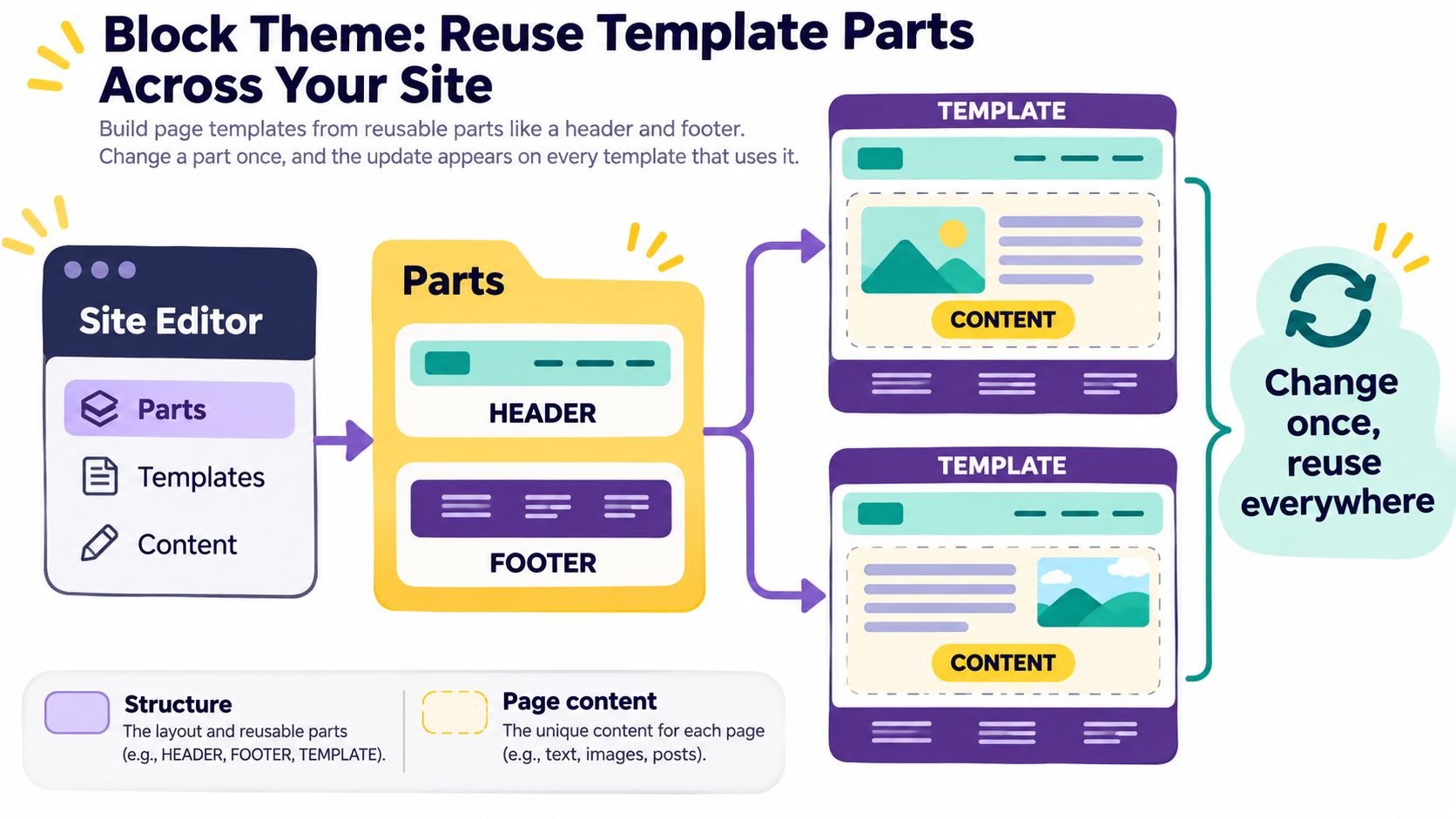
Editorial illustration; the panels and labels are representative, not a live WordPress administration screen.
If you copy the same header or footer blocks into several page templates, every small change becomes a hunt through repeated markup. WordPress block themes offer a cleaner model: put repeated site structure in template parts, then include those parts wherever the structure belongs.
Template parts are not simply another kind of reusable paragraph. They are intended for repeated areas of a template, such as a header, footer, sidebar or comments area. That distinction helps you decide when a global change is appropriate and when content should remain independent.
Summary
- Use template parts for repeated site structure; use patterns or ordinary content when the repeated item is mainly a layout or message.
- In a block theme, manage parts from Appearance > Editor > Patterns > Template Parts, or define them in the theme’s
/partsfolder. - Test global edits, database overrides and theme changes on a staging copy before changing a site-wide header or footer.
Template, template part and content
A template is the larger structure used for a type of page, such as a single post, archive or page. A template part is a smaller section included inside that structure. The header and footer are familiar examples, but a block theme can define other parts when a site has a repeated structural need.
The post or page content is different. It belongs to an individual item and should not silently change everywhere because an editor updated a shared structural component. WordPress documentation describes template parts as repeated areas of a site’s structure, while synced patterns are better suited to content that should stay in sync.
This gives you a practical rule: if the change should affect the shell of many pages, consider a template part. If it is a notice, call to action or contact block that editors may want to vary, consider a pattern or another content workflow.
What a block theme provides
Template parts are part of the block-theme and Site Editor workflow. WordPress documentation says the Site Editor Patterns menu is available when a block theme is active. A classic theme may support some template editing features, but the exact controls depend on the theme and its support.
In the dashboard, open Appearance > Editor > Patterns and look for Template Parts. You can select an existing part, edit the original, or create a new part. When you edit the original, every template that uses it can reflect the change. That is the benefit—and the reason to treat the action as a site-wide change.
Create a useful first part
Start with a small, clearly named component. A header might contain the Site Logo, Site Title and Navigation blocks. A footer might contain a short site credit, legal links and a contact route. Avoid putting unrelated marketing sections into a part simply because they appear on more than one page.
Use a name that describes the role rather than the campaign. footer-main is easier to understand next year than summer-promo-footer. If the part has a special purpose, document it in the theme or editorial notes.
Dashboard workflow
- Confirm that the active theme is a block theme or otherwise supports the relevant editor.
- Open Appearance > Editor > Patterns and locate Template Parts.
- Choose an existing part or create a new one with a descriptive name and area.
- Add only the blocks that belong to the structural role.
- Save the part and preview a post, page, archive and any custom template that uses it.
- Check mobile layout, keyboard navigation, links and contrast before treating it as finished.
The labels and menu positions can vary with the WordPress version and theme, so treat the workflow as a model rather than a promise that every site looks identical.
Theme files and the /parts folder
For a block theme, template part files normally live directly in the theme’s /parts folder. A part called header.html can be referenced with the Template Part block using the slug header. The block markup can include a tagName such as header or footer when the wrapper should carry semantic meaning.
A minimal inclusion looks like this:
<!-- wp:template-part {"slug":"header","tagName":"header"} /-->

<!-- page content belongs here -->

<!-- wp:template-part {"slug":"footer","tagName":"footer"} /-->
The important detail is that a template part is included by a top-level template; creating a file in /parts does not make it appear automatically. The part must be used in a template.
WordPress also supports registering parts in theme.json with a name, title and area. Registration makes the part easier to find and label in the editor. Keep filenames, slugs and registrations aligned so that another developer can understand the relationship.
The database can override theme files
This is the detail that surprises teams working from a repository. If an administrator edits a template part in the Site Editor and saves it, WordPress stores a customized version in the database. The saved version can take precedence over the file bundled with the theme.
That is useful for site owners who need visual control. It can also create drift: the repository says one thing while the live database shows another. If the theme is distributed or deployed between environments, record which parts were edited and decide whether the final block markup belongs back in the theme.
Do not overwrite a live customization casually. Export or copy the intended markup, test it, and agree on the source of truth before a theme update.
Template parts versus patterns
Use a template part for structure that is part of the page frame: a site header, footer or comments area. Use a regular pattern for a layout that editors may insert and then customize. Use a synced pattern when the same content should remain synchronized across placements and a global edit is intended.
The names can be confusing because all three can contain blocks. The decision depends on what is being repeated and who should be allowed to change it. A company address that must be identical everywhere may be a synced pattern; a navigation shell is more naturally a template part.
Test before a global change
Make a list of templates that include the part. At minimum, check the homepage, a post, a page, an archive and a 404 page if those templates exist. Look for duplicate navigation, missing landmarks, broken links, unexpected spacing and content that is hidden on one viewport.
If the change is made in the editor, test the saved database state. If it is made in theme files, test a fresh environment and an existing site with user customizations. Do not assume that a successful save means the front end is correct.
Mistakes to avoid
- Using a template part for ordinary article content that should vary by page.
- Editing a header globally without checking every template and viewport.
- Forgetting that a database-saved part can override the theme file.
- Creating many nearly identical parts instead of defining a clear structural role.
- Assuming a
/partsfile appears on the site without being included in a template. - Changing a part in production without a rollback or preview path.
For related guides that complement this checklist, see:
- WordPress Multisite Architecture: When to Use a Network and What to Check Before Enabling It
- How to Enable WordPress Multisite: A Step-by-Step Guide
- WordPress Site Health Is Useful—But It Is Not Your Whole Maintenance Plan
My Take
Template parts are most valuable when a site has a small number of stable structural decisions. They reduce repetition and make global changes deliberate. They become confusing when every repeated block is promoted to a global component without deciding who owns its content.
Conclusion
Use template parts for reusable block-theme structure, name them clearly, include them explicitly in templates and remember that Site Editor saves may live in the database. Start with one header or footer, test every affected template, and document whether the theme or the live site is the source of truth.