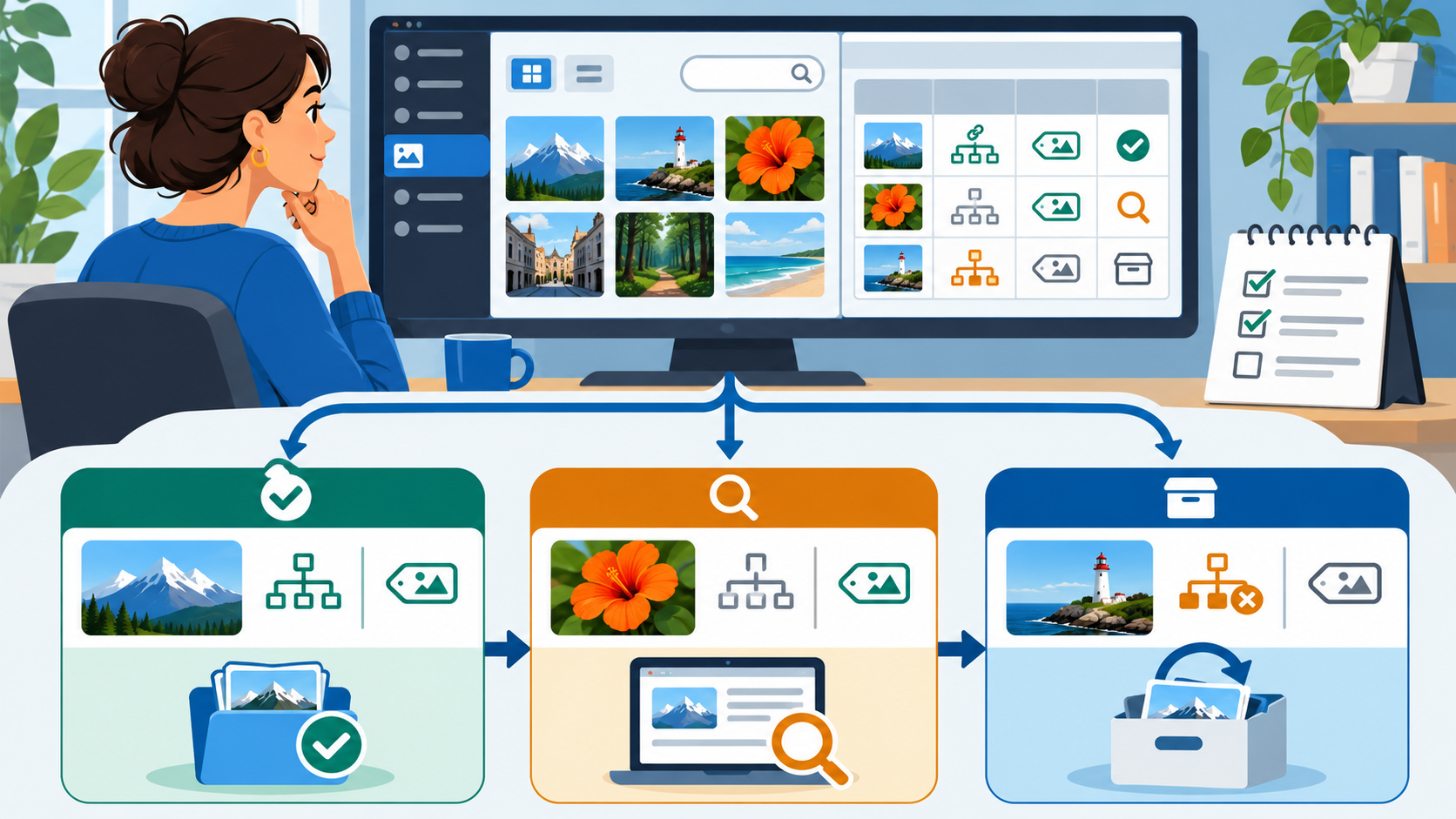
Editorial illustration; the media library and review flow are representative and are not a live WordPress installation.
An old WordPress site can accumulate screenshots, campaign banners, duplicate logos, oversized originals and images uploaded for drafts that were never published. The obvious temptation is to filter for “unattached” media and delete everything in the list.
That shortcut is unsafe. In WordPress, a media item can be unattached to a post while still being used by a page builder, a custom field, a widget, a theme option, a feed, or a hard-coded URL. Cleanup should be a review process, not a blind count of attachments.
Summary
- Treat “unattached” as a review signal, not proof that a file is unused.
- Check page, template, widget, custom-field and code references before deletion.
- Keep a backup and a deletion record, then verify important pages after each batch.
- Start with obvious duplicates and obsolete drafts before touching uncertain assets.
What WordPress knows about a media item
WordPress stores uploaded media as attachment records. When a file is uploaded from inside an editor, it may be attached to the post being edited. When it is uploaded directly through the Media Library, it may be unattached until someone associates it with content. The relationship is useful, but it is not a complete map of every place where a URL can be used.
The Media Library screen can filter by type and show whether media is attached to a post or page. That helps you find candidates. It does not understand every external reference, CSS background, theme setting or page-builder data structure on a particular site.
A safe cleanup workflow
1. Define the goal
Do you want to reduce storage, remove confusing duplicates, improve editorial search, or reduce oversized files? Each goal needs a different rule. Deleting files does not automatically make a page faster if the page uses a different copy or if the main issue is image dimensions and delivery.
2. Export a baseline
Before deleting anything, record the current media count, storage usage and the URLs of important page types. Take a database and file backup that you know how to restore. If the site is business-critical, test the restore process in a safe environment rather than trusting a “backup complete” message.
3. Start with high-confidence candidates
Good first candidates include exact duplicate files, test uploads, images belonging to deleted campaigns, and files with an obvious temporary name. Keep an “uncertain” list instead of forcing a decision. A file with an unhelpful filename may still be the only copy used in a footer or landing page.
4. Check attachment and content references
Open the attachment details and review the “Uploaded to” information. Search the site content for the file URL, filename, attachment ID, or distinctive alt text. Include pages, posts, reusable blocks, menus, widgets, templates and custom post types in the search.
5. Check theme and plugin storage
Some themes and plugins save image IDs or URLs in options and custom fields rather than normal post content. Review theme customizer settings, site editor templates, sliders, forms, product records and page-builder elements. If a plugin offers an internal media usage report, understand how it defines “used” before relying on it.
6. Preserve a deletion log
Record the filename, attachment ID, original URL, reason for deletion, reviewer and date. This makes a later broken-image investigation much faster. Do not put private customer information into a public ticket or repository.
7. Delete in small batches
Remove a small, well-understood set, then check the home page, navigation, key landing pages, recent posts and any transactional flow. A slow batch is easier to reverse than a thousand-file deletion that produces an unknown number of broken references.
8. Review the result
Compare storage and page behaviour with the baseline. Look at server logs, broken-link reports and browser developer tools if images fail to load. If the goal was performance, measure the actual pages rather than assuming the library count is a performance metric.
Why “unattached” is not enough
The WordPress documentation explains that a media item uploaded through the Media Library may be unattached and can later be attached to a post or page. It also notes that media items have their own attachment records and can be used by themes. That is why the filter is useful for discovery but insufficient for deletion.
A site can also reference an image outside ordinary editor content. A CSS rule may point to a URL. A product plugin may store an image ID in a product table. A page builder may serialize the reference inside its own data. A cleanup tool that only scans post bodies can miss these cases.
Practical decision table
Use a simple three-way decision:
- Keep: the file is used, its ownership is clear, or its removal would be hard to verify.
- Verify: the file looks old or duplicated, but a theme, plugin, template or external reference may depend on it.
- Remove or archive: the file is confirmed temporary, duplicated with no references, or part of a retired campaign with an approved replacement.
Archiving can be safer than immediate deletion when storage policy allows it. Move the original to a controlled archive, retain the record, and delete only after the agreed retention period.
Mistakes to avoid
- Deleting every unattached item in one click.
- Assuming a filename search covers attachment IDs and custom fields.
- Removing an original because a resized thumbnail still appears in a cache.
- Testing only the home page.
- Using a cleanup plugin without checking its backup, scan and restore behaviour.
- Treating media deletion as a substitute for image resizing, caching or better delivery.
My Take
Media cleanup is editorial housekeeping with a technical edge. The best sites make ownership and reuse clear when an image is uploaded: meaningful filenames, useful alternative text, a source note where needed, and a record of whether the image is permanent or campaign-specific. That small amount of context prevents the Media Library from becoming a guessing game later.
Bottom Line
Use WordPress’s attachment information and Media Library filters to find candidates, then verify real references before deleting. Back up first, delete in small batches, keep a record and test the pages that matter. A smaller library is helpful only when it is still a trustworthy library.