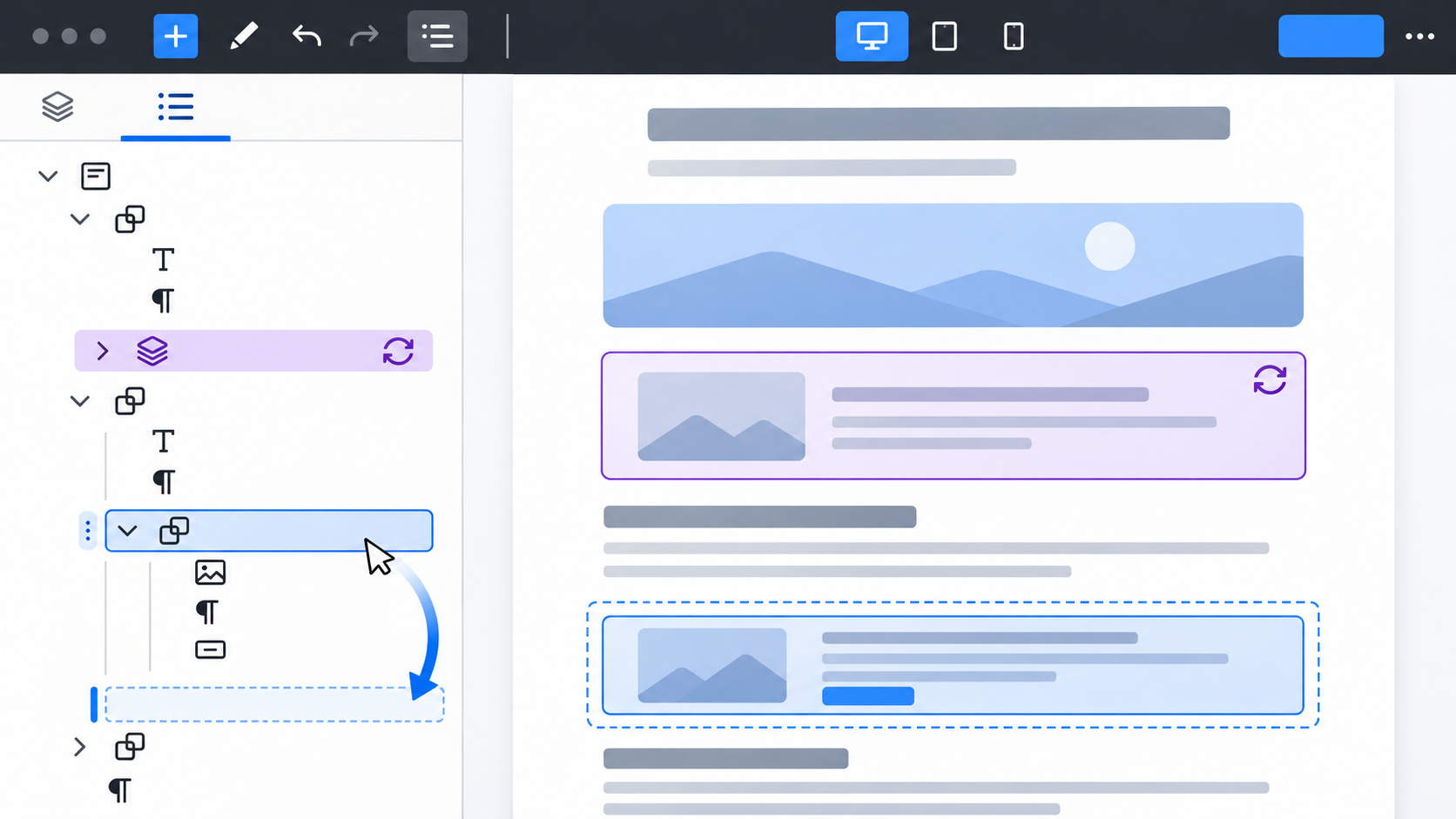
Editorial illustration; the editor is representative and is not a live WordPress dashboard.
Long WordPress pages become difficult when the editor canvas stops telling you where a block belongs. A hero section contains a group, the group contains columns, and one column contains an image, heading and buttons. Clicking the right object with a mouse can take longer than editing the content itself.
WordPress List View gives the page a structured outline. The official documentation describes it as a way to see blocks, select nested content, drag sections, collapse groups and identify synced patterns. It is not a replacement for a content model, but it is a useful control panel for complex block layouts.
Summary
- Open Document Overview and use List View to inspect the page’s block hierarchy.
- Select, collapse, rename and move groups from the outline instead of hunting on the canvas.
- Treat synced patterns as global content; verify the scope before editing or detaching them.
What List View solves
The canvas shows appearance. List View shows structure. That difference matters when a page contains repeated groups, columns, cover blocks or deeply nested sections. Selecting a parent group in the outline can reveal the exact set of blocks you intend to move. The panel can also show image previews and HTML anchor names, which helps distinguish similar sections.
List View does not repair a confusing page by itself. If every section is a one-off group with vague names, the outline will still be hard to understand. Its value increases when the editor uses meaningful group names and keeps nesting reasonable.
Why it matters
An accidental move can change the reading order, mobile layout or meaning of a call to action. Seeing the hierarchy first makes the edit easier to explain and easier to undo. It also gives a second editor a shared map instead of requiring them to infer structure from pixels.
A practical workflow
1. Open the document overview
In the Block Editor, select the Document Overview button near the top-left of the editor. Open the List View tab. If the sidebar is too narrow, close other panels so the outline has room to show nesting.
2. Read the hierarchy before changing anything
Expand the top-level groups and identify the page landmarks: header, introduction, feature section, call to action and footer. Do not start dragging immediately. First confirm which parent contains the content you want.
3. Rename ambiguous groups
Use the block’s options to rename groups when the name will help future editors. “Group” is technically correct but not useful. “Pricing cards” or “About the author” gives the next person a better map.
Keep names about purpose, not temporary appearance. “Blue section” becomes misleading after a redesign; “Support options” remains meaningful.
4. Collapse sections you are not editing
Collapse the hero, footer or completed sections. This reduces visual noise without changing the published page. When the page is long, collapsing is often safer than scrolling through the canvas and accidentally selecting a neighboring block.
5. Select the smallest useful parent
If you need to move three cards together, select the group that contains those cards. If you select the entire page, you may move unrelated content. If you select only one paragraph, the cards will be split apart.
6. Move the block in List View
The official documentation says List View supports dragging blocks within the outline. Drag until the insertion indicator shows the intended location, then release. Pay attention to indentation: moving a block into a group is different from moving it before the group.
After the move, inspect the canvas at desktop and mobile widths. A structurally valid move can still change spacing or column behavior.
7. Check locked and hidden blocks
List View can show indicators for locked or hidden blocks. Do not unlock a block simply because it is inconvenient to select. Ask why it is protected. A locked navigation section or reusable layout may be part of a site-wide agreement.
8. Understand synced patterns before editing
Synced patterns are highlighted so editors can distinguish them from ordinary blocks. A change to the source can affect every use of that pattern. Before editing, ask whether the change is global. If only one page should differ, use the available option to detach or convert the copy according to the site’s editing policy, then verify the result.
This is a content-governance decision, not merely a formatting trick. A shared donation callout may need one central update; a campaign landing page may need an independent version.
Example: fixing a crowded landing page
Suppose a landing page has a headline, a three-column feature group, a testimonial and a form. On the canvas, the testimonial appears to be inside the feature group, but the outline shows it is a sibling below the group. Select the feature group, move it above the testimonial, and review the page. If the testimonial itself is a synced pattern, avoid editing its text while rearranging the page unless the global wording is intended.
When List View is not enough
If the outline is full of anonymous groups, document the page structure before adding more blocks. If the same content is repeated across many pages, consider a pattern or a content model rather than copying blocks forever. If editors regularly need to change layout rules, review the theme and template design; a page-by-page fix can hide a system-level problem.
Mistakes to avoid
- Dragging a parent block when you intended to move only one child.
- Confusing a synced pattern with an ordinary group.
- Treating lock indicators as obstacles instead of governance signals.
- Renaming every block with visual names that will become inaccurate.
- Changing layout without checking the front end at multiple viewport sizes.
My Take
List View is most valuable when a page is already complicated. It makes structure visible at the moment a visual editor becomes ambiguous. The feature rewards small habits—purposeful group names, sensible nesting and a pause before moving a parent block.
Bottom Line
Use List View to see the page’s hierarchy, select the correct parent, move content deliberately and identify global patterns. It will not replace planning, but it can turn a frustrating long-page edit into a controlled, reversible change.