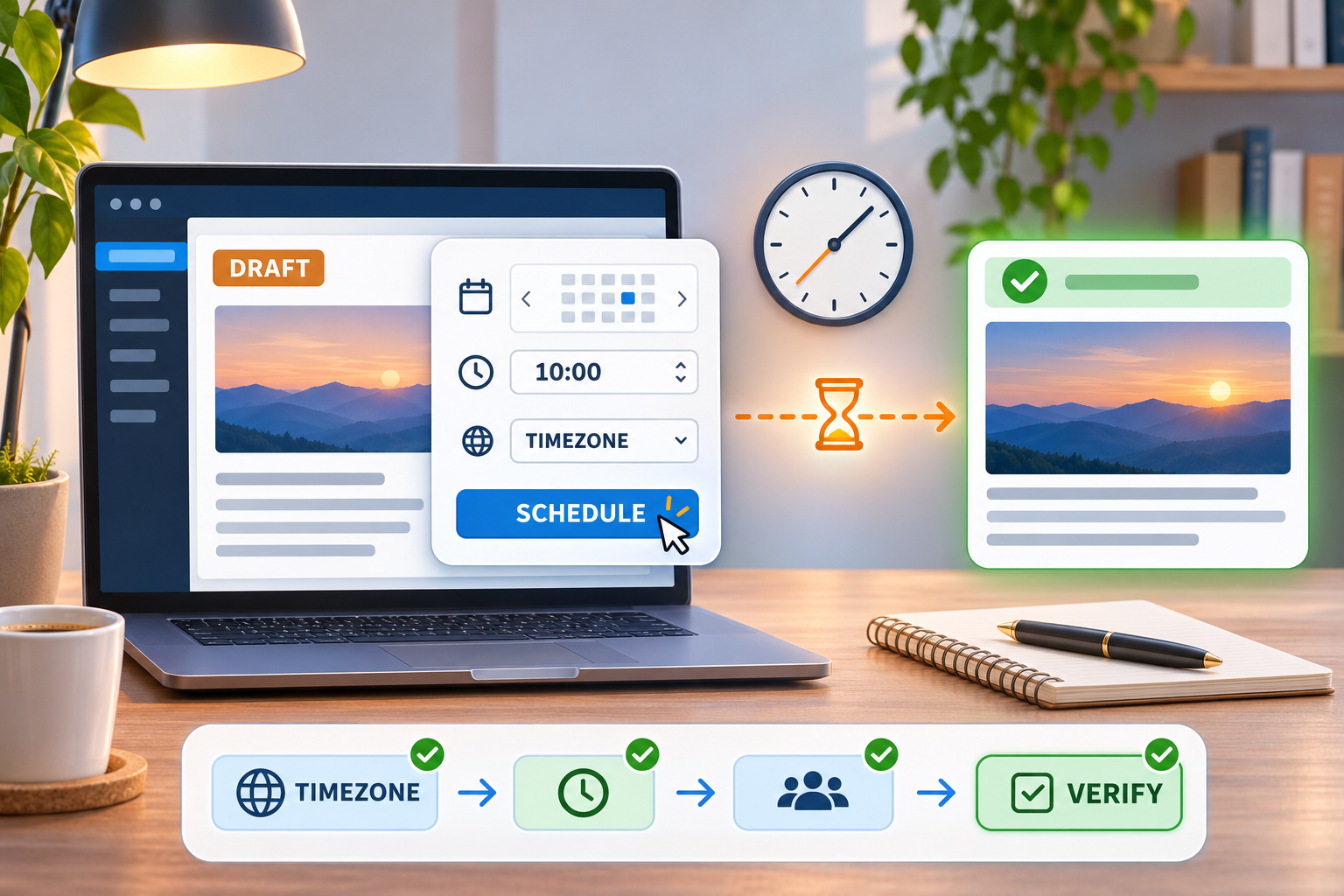
Editorial illustration; the editor, clock, and checklist are representative and are not a live WordPress dashboard.
Scheduled publishing is useful when you want an article to appear while you are away from the dashboard. When it works, a future post moves to the public site at the time you selected. When it does not, the post may remain marked as scheduled, appear at the wrong hour, or publish only after someone visits the site.
The fix is usually a sequence of checks rather than a new plugin. Start with the post’s status and the site timezone, then look at the mechanism that triggers scheduled work, recent plugin or hosting changes, and the public result. Keep one variable at a time so you know which change solved the problem.
Quick Answer
Open the post and confirm that it is scheduled rather than saved as a draft. Check Settings > General for the site timezone, compare the scheduled time with that timezone, and confirm the post is not private or pending review. If the time passed, visit the site while logged out; WordPress documentation notes that scheduled work may be triggered by a visit. For quiet or low-traffic sites, check whether a reliable server-side cron task or a hosting tool is configured, then verify plugins, logs, and the public page.
Understand what “scheduled” means
WordPress uses a future status for posts that are set to publish later. The date and time are part of the post’s publishing settings; they are not merely a note for the editor. The Schedule button must be completed. Closing the editor after selecting a date is not the same as scheduling the post.
The displayed time also depends on the site’s timezone setting. Your laptop’s timezone, the server’s timezone, and the WordPress site timezone can differ. Choose one reference—the site setting—and record it when you create a publishing calendar. A post intended for 9:00 a.m. Malaysia time should not be entered while mentally converting from an unverified server clock.
A step-by-step troubleshooting path
1. Confirm the post status
Go to Posts > All Posts and filter for scheduled or future posts. Open the article and inspect the status and publish date. If the editor still shows a draft, the scheduling action was not completed. If it shows pending review, the account may not have permission to publish and an editor must approve it.
Do not change the date first. Take a screenshot or note of the current status, date, and time so you can compare the result after each test.
2. Check the site timezone
Open Settings > General and review the timezone selected for the site. Check the date format, time format, and current time displayed by WordPress. The important question is whether the site shows the time you expect now—not whether it matches your operating system by coincidence.
If you change the timezone, review existing scheduled posts. A timezone change can alter how future times are interpreted or displayed. Communicate the change to editors and avoid making it during a busy publishing window without checking the queue.
3. Confirm the exact schedule action
Edit the post’s date and time, then confirm the button says Schedule and complete the action. A post that was saved as a draft will not publish merely because a future date is visible in an editorial note. If you want to publish immediately, use the documented option to change the date to now and publish deliberately.
Use a harmless test post on staging when possible. Do not use a live article as a timer experiment if missing or duplicate publication would affect readers.
4. Check whether the time has passed
If the scheduled time has just arrived, allow a short interval and test the public page in a private browser window. WordPress’s support documentation describes scheduled posts as being triggered by the first visit on or after the selected time. On a small site, logging out and visiting the front page can be a useful diagnostic step.
That is not proof that every site should rely on visitor traffic. It is a clue about the default mechanism and why a low-traffic site can appear to miss schedules.
5. Inspect WP-Cron and hosting behaviour
WordPress uses scheduled events for future work. The developer documentation describes single events as being triggered when the site is visited after the scheduled time. If a site receives little traffic, or if a configuration disables the normal trigger, scheduled work can be late.
Check with the host or a trusted administrator whether a real server-side cron task is configured for the site. If DISABLE_WP_CRON is set, the replacement task must actually run at a suitable interval. Do not copy a cron command from a random forum post into production without confirming the site path, user, PHP command, permissions, and host policy.
If you use a management plugin to inspect scheduled events, treat it as a diagnostic tool. Installing another plugin during an incident can add a new source of failure and may not repair an underlying hosting problem.
6. Review recent changes
List changes made before the problem: WordPress core, plugin, theme, PHP, caching, security rules, hosting migration, or code deployment. A plugin that filters post status, modifies cron events, or changes timezone handling may affect scheduled publishing.
Test one suspected component at a time on staging. Keep a backup and rollback path before disabling anything on a live site. If a plugin is abandoned or unnecessary, remove it through a planned maintenance task rather than deleting files while the site is already unstable.
7. Verify the public and editorial paths
When the post publishes, check the article in a private browser window, the homepage or archive, feeds if they matter, images, metadata, and any caching layer. Then return to the dashboard and confirm the status is published. A post can be published successfully but remain absent from a cached listing or fail to render because of a theme or build issue.
For a missed schedule, record the intended time, observed time, site timezone, visitor or cron activity, and relevant log entries. This turns “WordPress missed it” into a reproducible maintenance case.
Common mistakes to avoid
Do not confuse your computer’s clock with the site timezone. Do not leave a post in draft and assume the date field is enough. Do not repeatedly reschedule the same post while a duplicate event may still exist. Do not disable all plugins or caching on production without understanding the impact. Do not call the site secure or reliable after one successful test; scheduled publishing is one workflow among many.
My Take
Scheduled posts are operational work, not magic. A small site should have a simple publishing test: schedule a private or low-risk post, confirm the site timezone, observe the trigger, and verify the public result. If publication matters to a business, a known server-side schedule and a monitoring or editorial check are worth more than hoping a visitor arrives at the right moment.
Bottom Line
Start with status, timezone, and the completed Schedule action. Then test the default visitor-triggered behaviour, inspect WP-Cron or the hosting replacement, review recent changes, and verify the public page. Record what happened so the next missed post can be diagnosed from evidence instead of guesses.