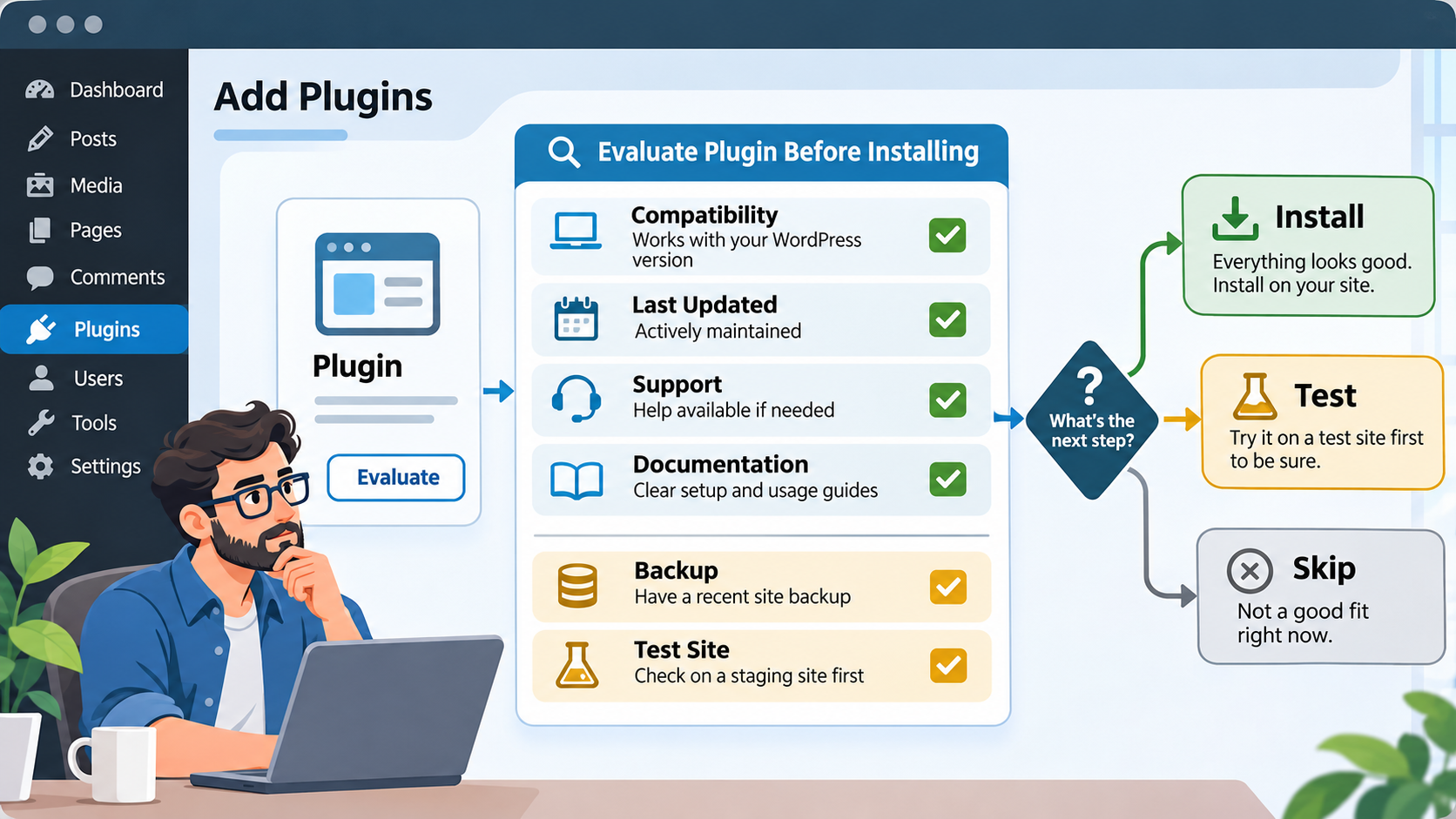
Editorial illustration; the dashboard and plugin card are representative, not a live WordPress screen.
The WordPress Plugin Directory makes it easy to add functionality. Search for a need, click Install Now, activate the plugin and continue building. That speed is useful, but the real maintenance decision starts before installation: you are adding another piece of software to the site, with its own settings, update cycle, permissions and possible data footprint.
The WordPress documentation describes plugins as PHP scripts that extend core and notes that plugins in the directory vary in quality and may be works in progress. A careful review does not guarantee that a plugin will be perfect. It does help you choose a tool you can explain, update, test and remove.
Summary
- Start with the problem and check whether WordPress or the theme already provides the required feature.
- Review compatibility, update activity, documentation, support and the plugin’s effect on data and performance.
- Use a current backup and a test environment when possible; skip the plugin when its maintenance story is unclear.
Begin with the smallest requirement
Write one sentence: “This site needs the plugin to ___.” If the blank contains five unrelated features, split the request. A plugin that solves one clear problem is easier to configure and replace than a large bundle whose behavior you do not understand.
Before searching, check built-in WordPress features, theme options and code you already maintain. Adding a plugin for something the site already does can create duplicate settings, competing output or another update obligation. “It has many features” is not a reason to install it.
A seven-part plugin review
1. Confirm the source
Prefer the WordPress Plugin Directory or a vendor you can identify and support. The official documentation describes the built-in Add New screen and the ability to inspect a plugin’s details, installation notes and documentation before activating it.
Treat a ZIP from an unknown download site as a supply-chain decision. If you must use a commercial or private plugin, record where it came from, who receives updates and how you will obtain support. Do not install a nulled copy or a package that bypasses licensing; you cannot rely on its integrity or maintenance.
2. Check compatibility in context
Look for the plugin’s stated WordPress compatibility and PHP requirements. The WordPress documentation says the Add Plugins page can show whether a plugin is compatible or untested with your version. “Untested” does not prove that it is broken, but it increases uncertainty.
Check the theme, other plugins, multisite configuration and hosting environment too. A plugin can be compatible with WordPress core and still conflict with a particular theme or extension. Keep a short record of the versions you reviewed rather than relying on memory.
3. Look at recent maintenance
The last-updated date and changelog give you clues about whether the project is actively maintained. A long gap may be acceptable for a stable, narrow plugin, but it should prompt more testing. Read recent release notes for bug fixes, security changes, database migrations and breaking changes.
The WordPress documentation warns that a plugin not updated since the latest core release may be incompatible or have unknown compatibility. Treat that as a signal to investigate, not as a popularity contest. High active-install numbers do not replace current maintenance or a fit for your site.
4. Read support and documentation
Open the plugin’s documentation and support forum. Can you find setup steps, configuration explanations, upgrade notes and a way to report a problem? Search for issues that resemble your environment rather than reading only star ratings.
Pay attention to unresolved problems involving data loss, login failures, broken checkout, slow pages or incompatibility with your theme. A quiet support forum can mean stability, low usage or low support activity; you need more context before deciding.
5. Understand data and permissions
Ask what the plugin can read, write, send or expose. A contact-form plugin may store submissions. An analytics plugin may send data to an external service. A backup plugin may access the entire site. Read the privacy and external-service disclosures and decide whether the data flow fits the site’s purpose.
Do not grant more access than the plugin needs. Use separate administrator accounts for administration, and check whether the plugin adds roles, endpoints, scheduled jobs or publicly reachable files. The absence of an obvious warning is not proof that a plugin has no security implications.
6. Plan updates and removal
Find out how the plugin is updated, whether it supports automatic updates and whether it leaves data behind when deleted. WordPress supports plugin auto-updates individually or in bulk, but the official documentation recommends regular backups before enabling them and checking Site Health if updates fail.
Automatic updates are a useful control, not a substitute for monitoring. Enable them where your backup, testing and notification process can handle a failure. For a critical payment or membership workflow, schedule a quick functional check after updates.
7. Test the smallest useful change
Take a current backup. If you have staging, install and activate the plugin there first. Exercise the exact workflow that matters: publish a post, submit a form, complete a purchase, log in, search, or generate the report the plugin promises.
Check the front end, admin screens, error logs, scheduled tasks, email delivery and page performance. If there is no staging site, choose a quiet time, document the previous state and install only one change at a time so you can identify the cause if something breaks.
When not to install
Skip a plugin when its purpose is vague, its source is unclear, its compatibility is unknown and its support path is absent. Also skip it when a small, well-documented code change or a built-in feature solves the same problem with less long-term complexity.
Do not install two plugins that do the same thing just to compare them on production. Test candidates separately in a safe environment. If a plugin has not been maintained and you cannot accept the cost of taking over its code, choose another approach.
Example: adding a form
Suppose a site needs a simple contact form. Define the required fields, spam controls, email destination, storage policy and accessibility expectations. Review whether the chosen plugin is compatible with the current WordPress and PHP versions, whether its documentation explains mail delivery, and whether it stores submissions.
On staging, submit a test form, inspect the email and confirm that the success message works. Check the privacy notice if messages are stored. If the plugin adds far more marketing, analytics and automation than the site needs, a narrower option may be easier to operate.
Mistakes to avoid
- Choosing only by active installations or star ratings.
- Installing a plugin before defining the problem and success test.
- Updating several plugins at once without a backup or a way to identify the failing change.
- Leaving an inactive plugin on the site indefinitely.
- Assuming deletion removes every database table or scheduled task.
- Enabling auto-updates without checking notifications, backups and the critical workflows afterward.
My Take
The best plugin is not the one with the longest feature list. It is the one whose purpose, data access, maintenance path and failure behavior you can explain to the next person who runs the site. A five-minute review can prevent months of carrying software that nobody owns.
Bottom Line
Define the need, inspect the plugin’s compatibility and maintenance signals, understand its data behavior, then test it with a backup. If the answers remain unclear, do not install it yet. WordPress is flexible precisely because you can choose fewer, better-understood extensions.