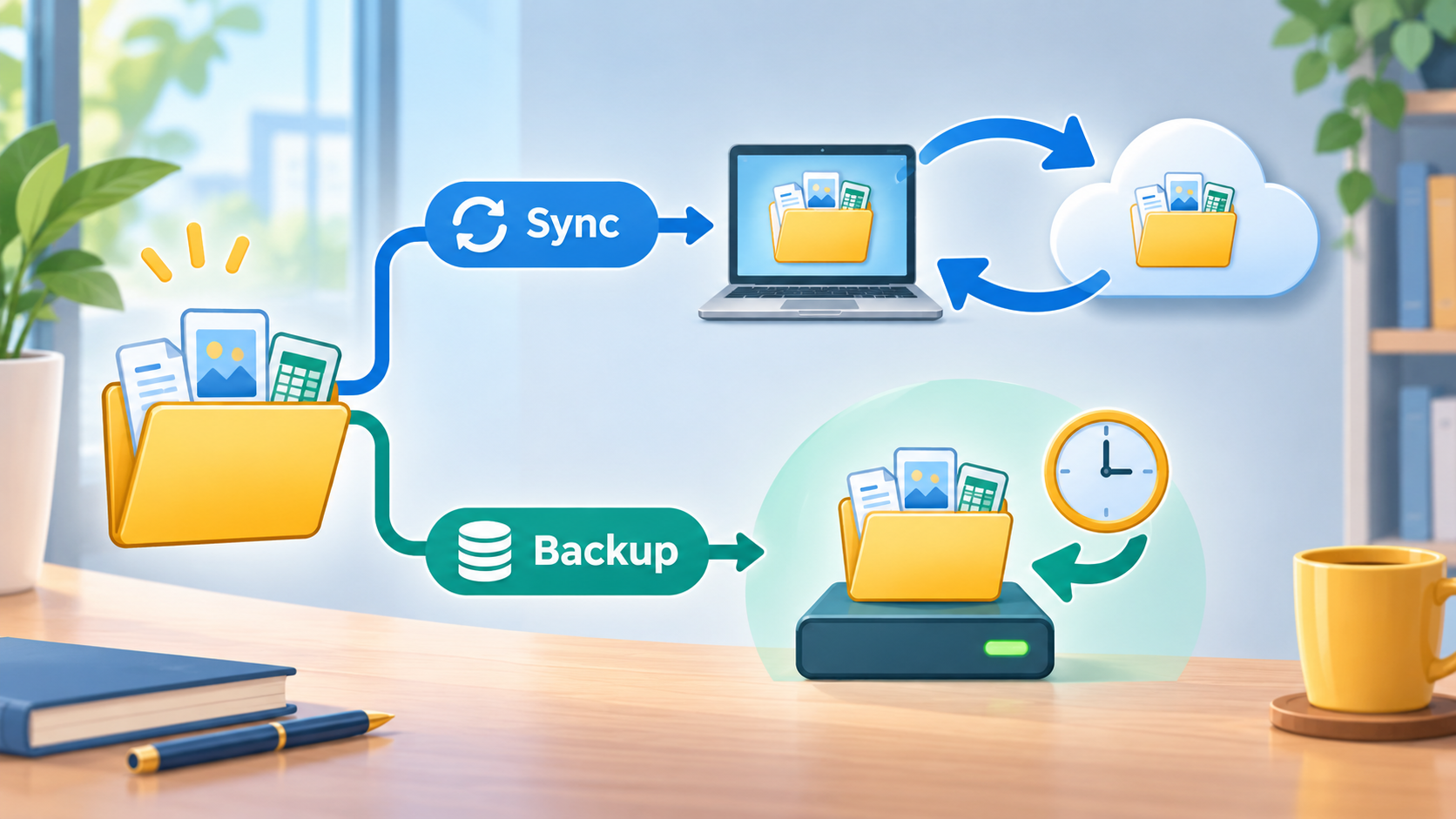
Editorial illustration; the folders and services shown are representative examples.
Cloud storage makes files available on more than one device, which is extremely useful. You can start a document on a laptop, continue it on a phone and share a link with a colleague. That convenience can create a dangerous misunderstanding, though: synchronization is not automatically the same thing as a backup.
If you delete a file from a synchronized folder, the deletion may be copied to the other devices. If an unwanted change is synchronized, the damaged version may become the version everyone sees. A backup has a different job: keep a separate, recoverable copy that can take you back to an earlier point in time.
Summary
- Sync keeps working files aligned across devices; a backup preserves an independent recovery point.
- Use version history, recycle bins and a second backup location, but do not assume any one feature covers every failure.
- Start with irreplaceable files, define how far back you need to recover, and test restoring a real file.
Sync and backup solve different problems
Synchronization optimizes for access and continuity. A sync client watches a folder or library and tries to make the same current content available in several places. That is useful when you are switching devices or collaborating.
A backup optimizes for recovery. It copies selected data on a schedule, keeps versions or snapshots, and gives you a way to restore after accidental deletion, device failure, account trouble or a malicious change. A backup may be slower and less convenient to browse because its purpose is not to be your live workspace.
The distinction is easiest to see with a simple example. Suppose a spreadsheet in a synced folder is accidentally overwritten. Sync may quickly distribute the bad version. You might still recover using the provider’s version history, but that depends on retention settings and the account remaining accessible. A separately managed backup gives you another recovery path.
Neither tool is universally better. Use sync for the files you actively work on. Add backup for the files you cannot afford to recreate.
What can go wrong with a synchronized folder?
Accidental deletion
Deleting a folder to tidy one device can remove it from the synchronized location. A recycle bin may help, but it is not a permanent archive. Check how long deleted items are retained and whether the limit differs between personal and organizational accounts.
Bad edits and overwrites
An incorrect edit, corrupted export or empty file can become the newest synchronized copy. Version history can be valuable, but it usually has a retention policy. A file that was quietly wrong for months may be difficult to recover if older versions have expired.
Ransomware or a compromised account
Malware can change accessible files, and a compromised account can change or delete data from the service itself. CISA guidance recommends maintaining backups separately and testing recovery; accessible copies should not be the only plan because an attacker may try to encrypt or delete them.
Device and account failures
Sync does not protect you from losing access to the account, losing the encryption key, or misconfiguring the client. A laptop that fails before its latest changes upload may also leave you with no current copy elsewhere.
Build a small backup plan
You do not need an elaborate enterprise system to begin. Use this workflow for personal files or a small project.
1. List what would be painful to recreate
Start with family photos, identity and financial records, contracts, creative projects, source code, configuration exports and the documents you need for work. Do not begin by copying every temporary download. A shorter list is easier to protect well.
2. Choose the recovery point you need
Ask two questions: how much recent work could you lose, and how far back might you need to go? If losing one day of work is acceptable, a daily copy may be enough. If a project changes hourly, schedule more often or save important milestones manually.
Do not promise a precise recovery time until you have measured it. A backup that exists but takes three days to download is different from one that lets you resume in an hour.
3. Keep an independent copy
Use a backup destination that is not simply another live view of the same synchronized folder. This could be a dedicated backup service, an external drive that is normally disconnected, or an organizational system with its own retention and access controls.
For a small setup, an encrypted external drive stored away from the laptop can be a useful additional layer. Disconnect it after the backup if you do not need it continuously connected. CISA’s ransomware guidance emphasizes offline, current backups and regular recovery tests.
4. Keep more than the newest version
Versioned backups help with the “I only noticed the problem later” scenario. Keep a rotation that includes recent copies and a few older milestones. The exact retention period depends on the value of the files, storage cost and any legal or organizational requirements.
Do not confuse a duplicate folder with version history. If every backup run replaces the previous copy, you may not be able to recover from a mistake that was copied before you noticed it.
5. Protect the backup itself
Use a strong account password and multifactor authentication where the service supports it. Encrypt portable drives and store recovery keys somewhere you can access when the main device is unavailable. Limit who can delete or change backups.
Cloud backups still require trust decisions. CISA’s data-backup guidance advises considering the provider’s security practices, encryption and how data can be retrieved. Read the service terms before placing sensitive records there.
6. Test restoration, not just completion messages
Choose one ordinary file and restore it to a temporary folder. Open it, check the date and confirm that the filename and contents are correct. Repeat with a larger folder occasionally. A green “backup completed” message does not prove that a full restore will work after a disaster.
Keep a small note with the restore steps, account name, encryption-key location and the person who can perform the recovery. Write it while everything is working, not during an emergency.
A practical folder routine
Keep active work in your normal synchronized workspace. At the end of a project milestone, export or copy the final package into a dated backup area. For example:
Project/
  active-work/       # synced working files
  releases/          # named milestones
  restore-notes.md   # how to rebuild or open the project
The folder structure is not the protection by itself. The important parts are the separate copy, the dates, the retention plan and the test restore. A small project is easier to recover when someone can tell which version is final and which tools are required to open it.
Mistakes to avoid
- Treating a synced folder on two laptops as two independent backups.
- Relying on a recycle bin without checking its retention period.
- Keeping the only backup permanently mounted and writable by every application.
- Exporting passwords or recovery keys into an unprotected text file.
- Waiting until a device fails to discover that the backup account needs a second-factor code from that same device.
- Copying sensitive files to a service without checking access, encryption and deletion controls.
My Take
The most useful mental model is simple: sync helps you continue working, while backup helps you go back. A sync service may include excellent recovery features, but you should verify how they work instead of assuming they are a complete historical archive.
For most people, the first improvement is not buying another tool. It is identifying a small set of irreplaceable files, enabling version history, keeping one independent copy and practicing one restore. That routine gives you evidence that the plan works.
Conclusion
Keep using cloud sync for convenience, collaboration and access across devices. Just give important files a second layer with independent, versioned and recoverable backups. Start small today: choose one folder, make a separate copy, disconnect or protect the destination, and restore one file to prove the path.